
The Rule Builder allows you to create powerful automations, without requiring any coding knowledge. It’s the foundation of what makes Order Desk unique and customizable, and is easily one of the most exciting features to implement. It can be used to update order statuses, add an artwork file to an item before fulfillment, flag potential fraud risks, create a PDF with order details, and so much more.
Watch and Learn
For a quick visual explanation of how the Rule Builder works, check out the following video:
What is a rule?
Rules tell the Order Desk app how it should automate workflows, based on the specific needs of your store.
Think of rules as an If/Then statement. If something specific happens, then you want Order Desk to take action on certain orders or items within orders. In the app, we call these Events and Actions, respectively.
Rules also contain Filters, which allow for fine-tuned, complex automations to be built for the most specific scenarios.
We’ll walk you through a sample rule so you can get a feel for how they operate.
Let’s say that when an order is imported, you’d like to have it automatically tagged with the color red if the shipping address includes a specific country. That rule would look something like this:
Event: Order is Imported
Filter: If Shipping Country (equals) FR
Action: Tag Order Red
The expected end result would be that all imported orders that need to be shipped to France would be tagged red.
Perhaps you sell in multiple regions and want to make sure that the right orders go to the right places for fulfillment. You could create a rule that looks like this:
Event: When Order is Imported
Filter: If Sales Channel (is) Shopify
Filter: If Shipping Country (equals) UK
Action: Change Folder (to) New UK Orders
You’ll notice that this rule has two filters to help specify that only orders from Shopify that have a shipping country of UK should be moved into the New UK Orders folder.
There are many different actions that can be taken on orders with a rule, and even more are added to your store when certain integrations are enabled.
To build a rule in your store, navigate to the Rule Builder page from the sidebar:
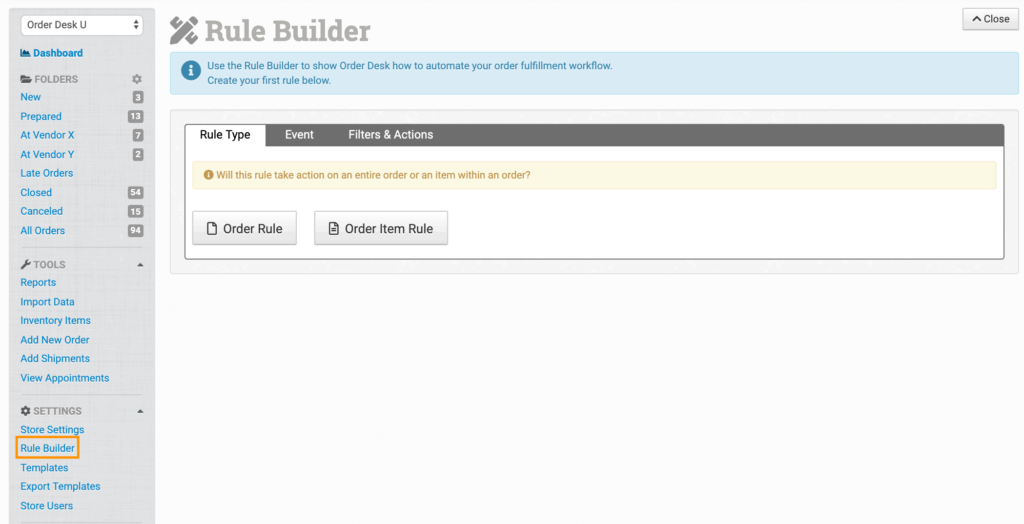
You can build two types of rules. An Order Rule takes effect on an entire order, while an Order Item Rule will only affect the items within the order. You’ll need to choose a Rule Type before you can set up your rule.
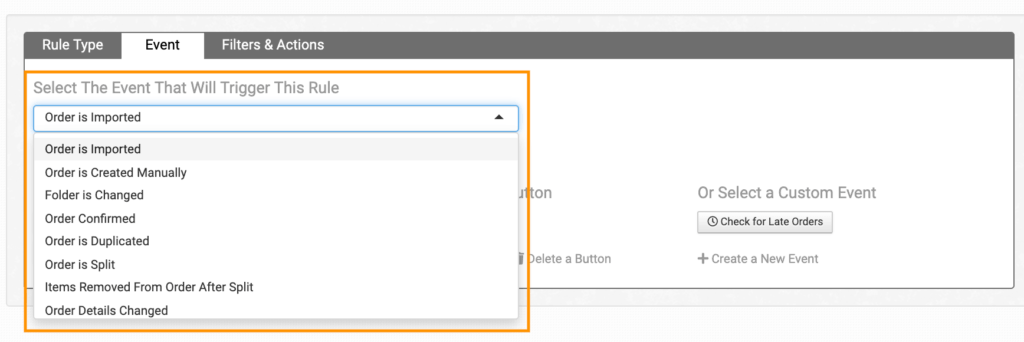
Next, in the Event tab, you’ll be able to choose when you’d like your rule to run. Order Rules and Order Item Rules run on different events, so you’ll see different options here depending on which type you choose.
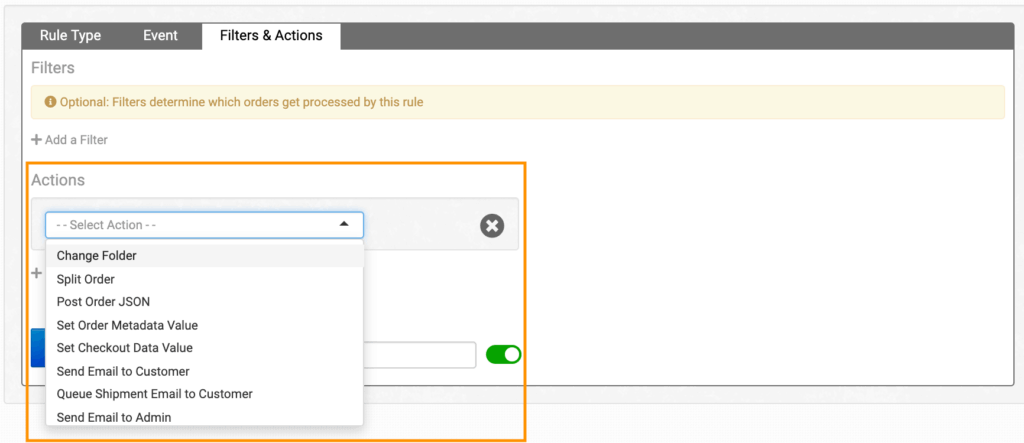
In the Filters & Actions tab, you will be able to specify the criteria in which the rule should run. If you want it to run every time your chosen even occurs, don’t add any filters. Multiple filters can be added to target specific scenarios by narrowing the scope of a rule.
Under Actions, you’ll be able to tell Order Desk what to do when all of your chosen criteria are met. Multiple actions can take place, and they occur in order from top to bottom.
Before you hit the Save button, don’t forget to give your rule a name to help you locate it in your list of rules (example: “Tag France Orders Red”).
How can I tell when a rule runs?
If you’re not sure whether or not a rule ran successfully, there are tools in place to help you check. Open an order where a rule should have run, then scroll to the Order History section. When a rule runs successfully, a record of that action will be logged within the order.

Why didn’t my rule run?
Sometimes, a rule won’t work when you’d expect it to run. A few quick things you can check could include:
- Did the filters in the rule match the order or item?
- Was your rule enabled? Check to see if the toggle is set to the red or green position.
- Was the event different than the one you chose for your rule? Some events can have similar names.
- Maybe it was the wrong Rule Type. You might have needed to choose another instead.
- When was the rule created? Rules won’t run retroactively.
In many cases, the issue is a small, easy to miss difference between what’s written in the rule and the contents of the order data. If you’re certain the rule filters should have applied but didn’t, contact Order Desk support to review it with you.