
If you use Zakeke with your shopping cart, Order Desk can import your product designs with your orders, placing them in the print_url field.
Setup
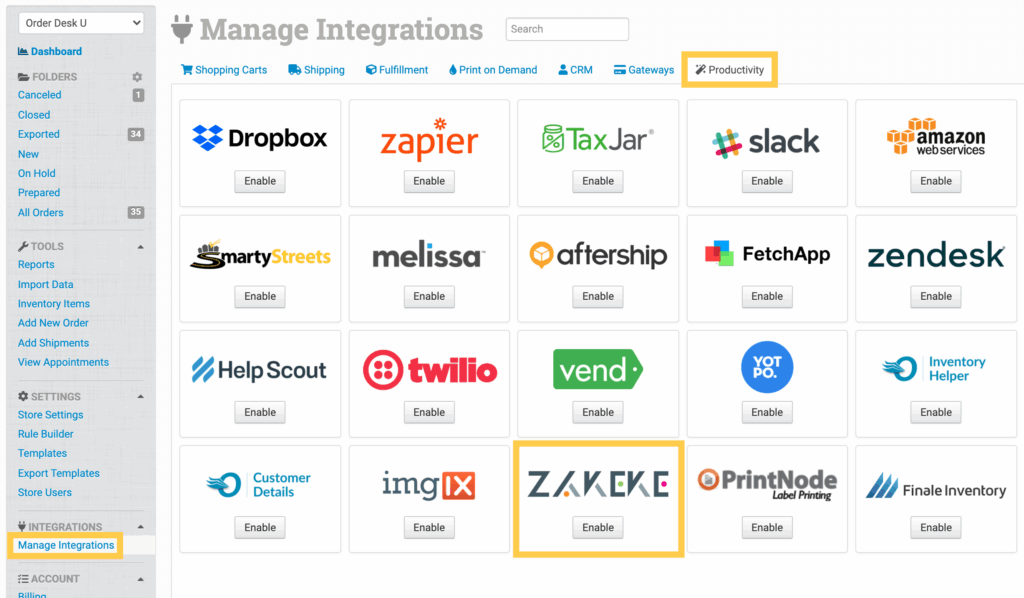
To enable the integration, click on Manage Integrations in the left sidebar. Under the Productivity tab, find and enable the Zakeke integration.
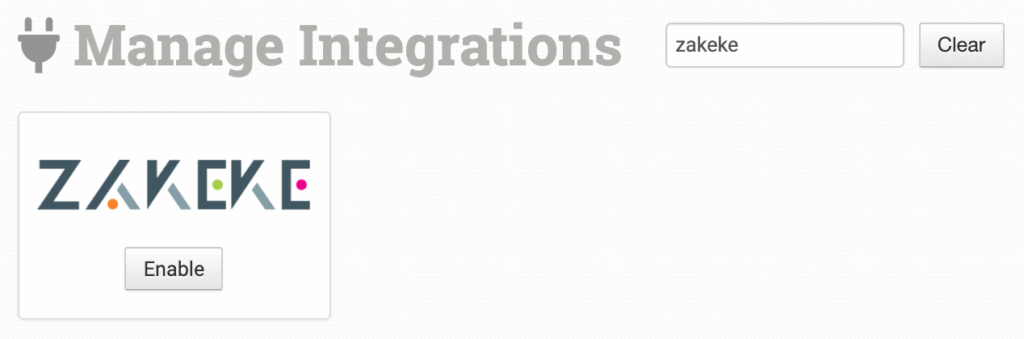
Alternatively, search for Zakeke from the available integration search.
To use the Zakeke integration you’ll need to set up a webhook in your Zakeke account. You can do this now using the link provided, or wait until you’ve made the integration connection. You’ll be given this URL again in your integration settings.
Enter your Zakeke Client ID and Secret Key then click to connect.
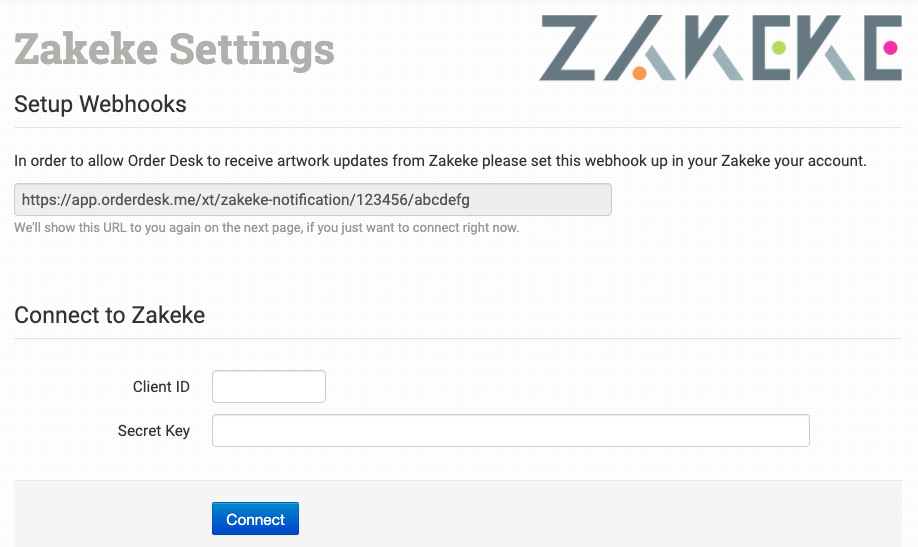
Please note that Order Desk isn’t able to help find or reset your credentials, as they can only be provided by Zakeke.
Settings
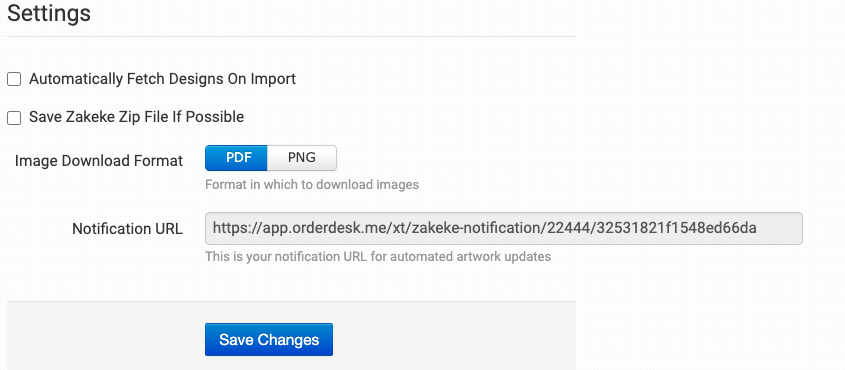
Automatically Fetch Designs On Import
Select this option to have your Zakeke designs imported with orders.
If you would prefer to fetch your designs at a later point in the fulfillment process after orders have already imported into Order Desk, you can set up a rule to fetch the designs on the event of your choice.
Save Zakeke Zip File if Possible
Select this option to add the link of the ZIP file of the design to the product in your order. This will be stored as zakeke_zip in your item metadata.
If you are unfamiliar with how to add item metadata or variations to your items in Order Desk, see the How to Work with Inventory Details guide.
Image Download Format
Select the image format for your design files.
Notification URL
Add this URL to your Zakeke account in the Webhooks > Order Generated Endpoint section. This allows Zakeke to notify Order Desk when an order is ready.
Fetching Designs from Zakeke
Order Desk will be able to fetch designs from Zakeke by looking up the design ID of items in the following fields:
| Field Name | Description |
| customization | This must be added as a variation. |
| Customization | This must be added as a variation. |
| zakeke_data_design | This must be added as a variation. |
| design | This must be added as item metadata. |
| shopify_item_id | This field is in the item metadata of Shopify items and will only be utilized when using webhooks to receive designs. |