
By connecting to the Outlook Integration, you can authorize Order Desk to send emails on your behalf.
Setup
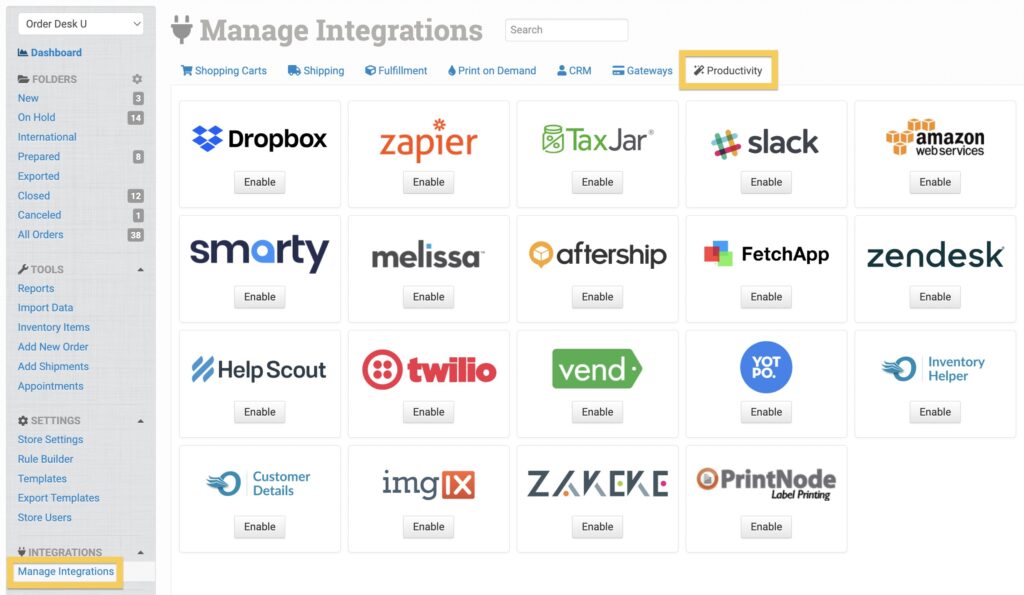
To enable the integration, click on Manage Integrations in the left sidebar. Under the Productivity tab, find and enable the Outlook integration.
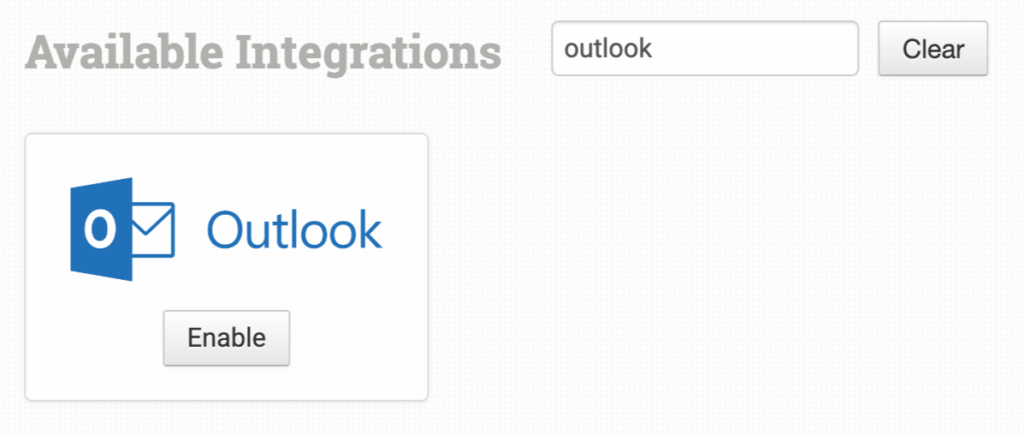
Alternatively, search for Outlook from the available integration search.
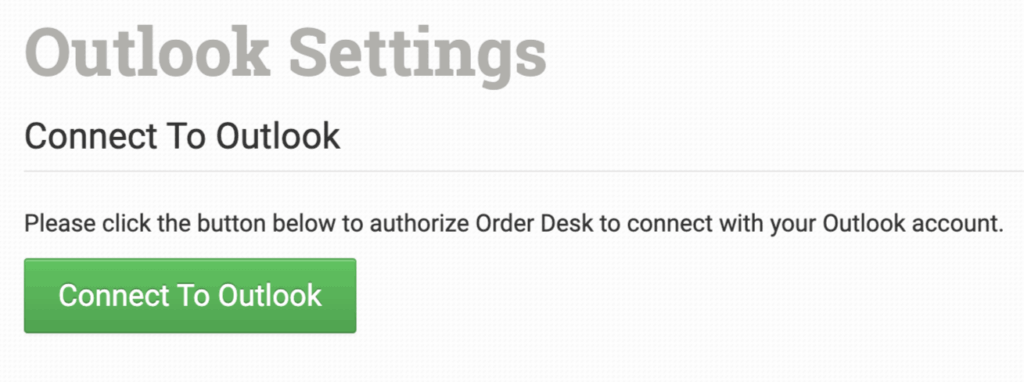
Click Connect To Outlook to be redirected to your Outlook account.
Follow the instructions to authorize permissions for Order Desk.
Settings
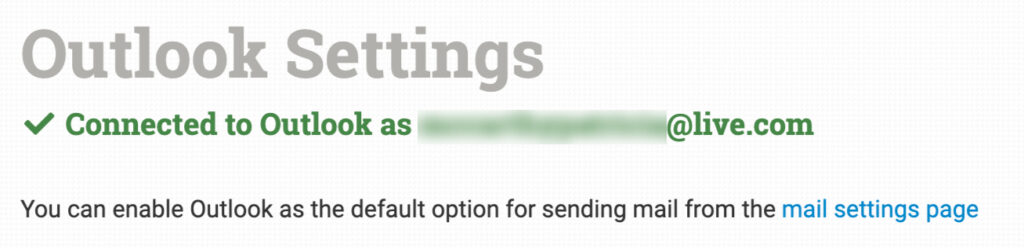
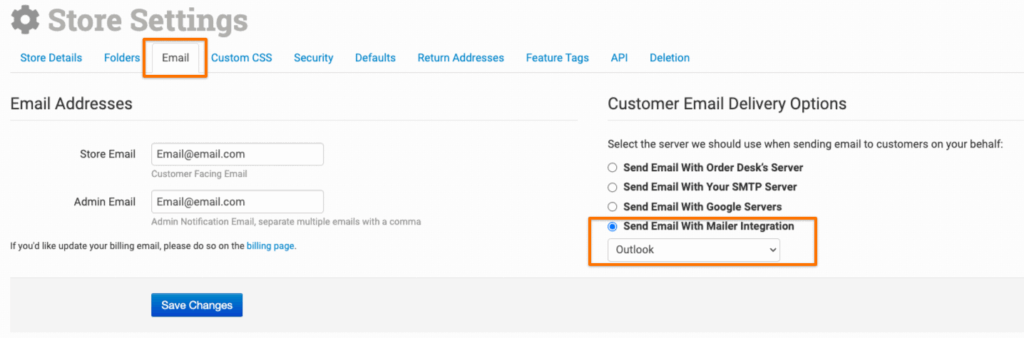
Once you’ve enabled the Outlook integration, you’ll be able to select it as your preferred method for sending emails by navigating to your Store Settings, selecting Send Email With Mailer Integration, and choosing Outlook from the dropdown.
For more information on sending email using Order Desk, take a look at our How to Send Email From Order Desk guide.