
Order Desk can submit your print on demand orders to RV Print Factory. As orders are fulfilled, the shipment info will automatically be pulled back into Order Desk and sent back to the original shopping cart.
Setup
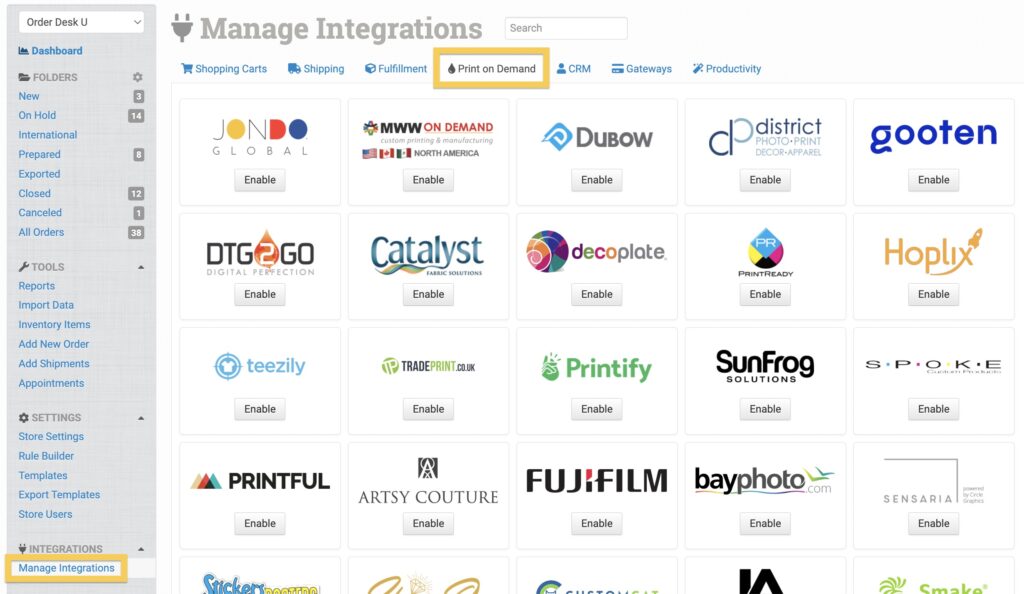
To connect to RV Print Factory, click on Manage Integrations in the left sidebar. Under the Print on Demand tab, find and click to enable the RV Print Factory integration.
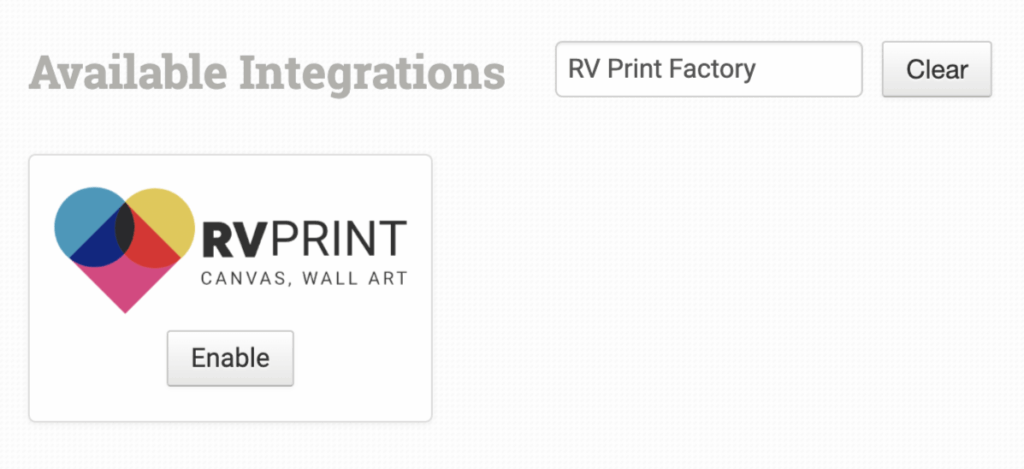
Alternatively, search for RV Print Factory from the available integrations search.
Select your environment and enter your RV Print Factory API Key, then click to connect:
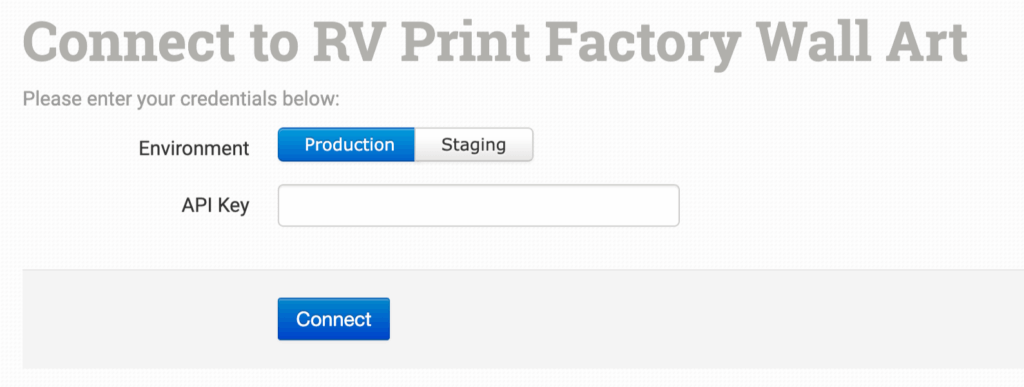
Please note that Order Desk isn’t able to help find or reset your credentials, as they can only be provided by RV Print Factory.
Integration Settings
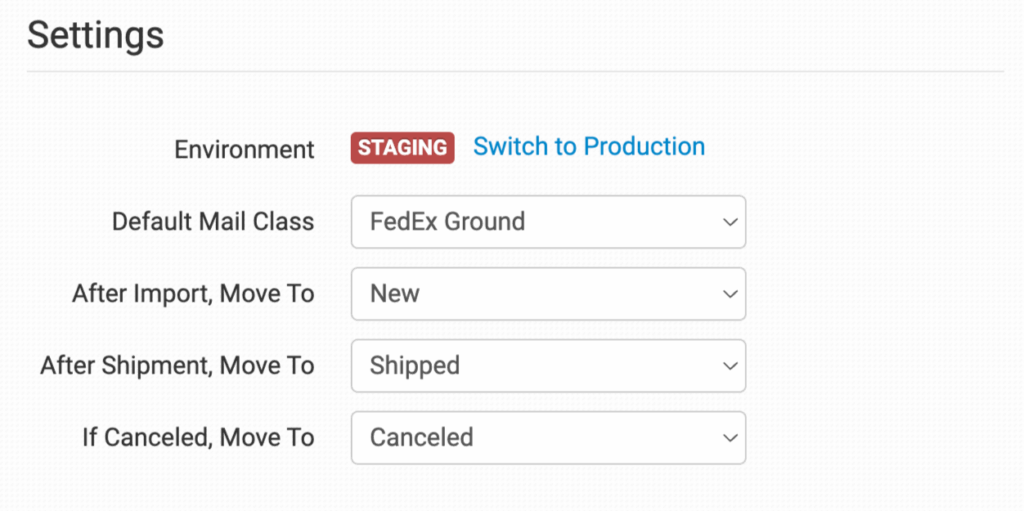
Once connected, you will have a few settings where you can set your preferences for this integration.
RV Print Factory Help
Click Need Help Getting Started? for access to helpful resources for using RV Print Factory.
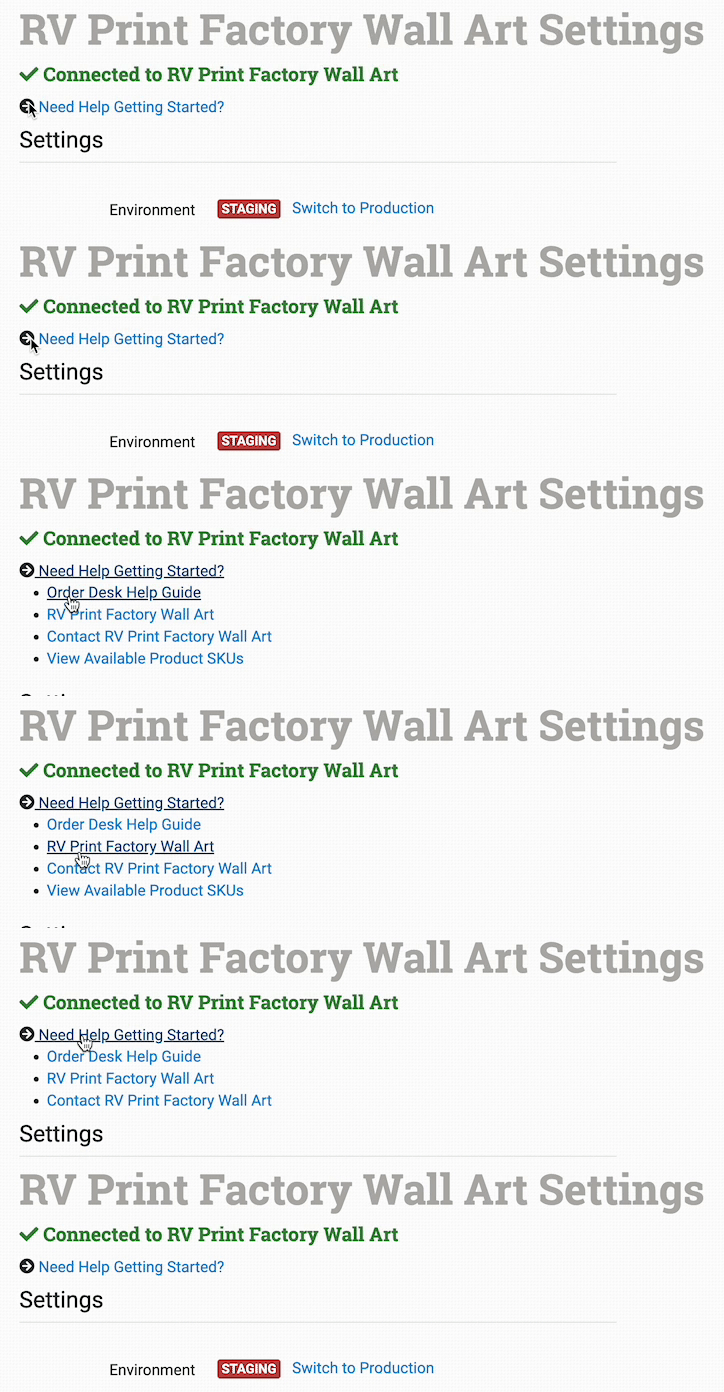
Environment
The environment you’ve chosen for your connection to RV Print Factory, as well as the option to switch environments.
Default Shipping Class
Choose the mail class you want RV Print Factory to use for orders.
If you need to apply specific methods for certain orders, match your method names to their names in the Shipping Class Match section below.
After Import, Move To
Select the folder you want orders to be moved into after they are sent to RV Print Factory.
If you want to use a custom folder, create your own from Store Settings. See the Working with Folders guide for more information.
After Shipment, Move To
Select the folder you want orders to be moved into when RV Print Factory sends shipment details back into Order Desk.
If Canceled, Move To
Select the folder you want orders to be moved into if they are cancelled at RV Print Factory.
Product Settings
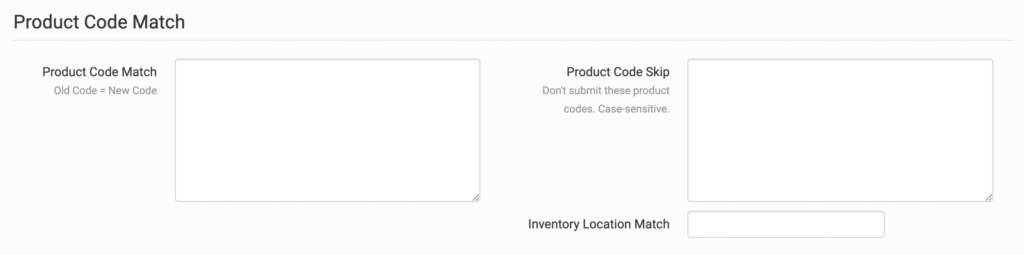
For more information on what the product settings within the RV Print Factory integration do, please read the Print on Demand Product Settings guide.
Shipping Class Match
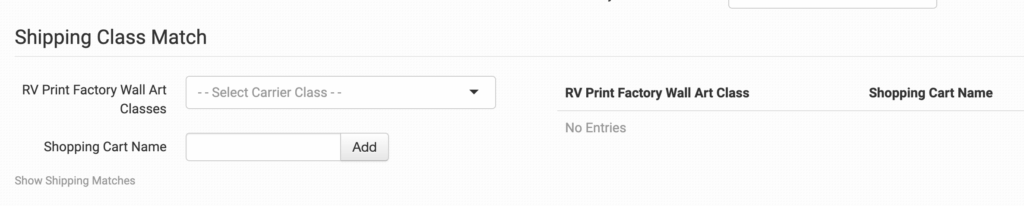
If the shipping methods you set up in your shopping cart(s) don’t match the shipping method names RV Print Factory uses, they won’t know what methods you intend for them to use. When this happens, the default mail class applied above will be used instead for all of your orders.
To tell RV Print Factory what methods you want them to use, you will need to match your method names to theirs. This can be done in the shipping class match section. For detailed instructions on setting this up, please read through the shipping class match guide.
Preparing Your Orders
The following details can be submitted for an order as either checkout data or order metadata.
| Field Name | Field Description |
| carrier | Required. Use to set shipping carrier. Available values are dhl, freight, fedex, ups or usps. |
If you are unfamiliar with checkout data, see the How to Work with Checkout Data guide.
Preparing Your Items
The following fields can be set as variations or item metadata for each order item.
| Field Name | Field Description |
| print_url | Required. Link to your artwork file so RV Print Factory can print it. |
| print_sku | Required. RV Print Factory’s product code/SKU for the item. |
| frame_type | Sets the frame type. Options are flat-mount, float-mount, classic-flat, modern-deep, modern-thin, shadow-box, traditional, metal scoop, and urban. |
| frame_color | Use to set frame color. Required if the frame_type field is present. |
| pin_color | Use to set pin color. |
| bleed_method | Use to set your image’s bleed method on the item. Options are mirror_with_blur, mirror_without_blur, gallery_wrap, and museum_wrap. |
Rules Reference
In addition to the general set of rule events and actions in Order Desk, RV Print Factory includes a number of rule events and actions that are specific to the integration. These aren’t found directly on the integration page. Instead, you’ll need to use the Rule Builder to access them.
If you’re new to using rules in Order Desk, we recommend starting with our How to Work With Rules guide.
Rule Events
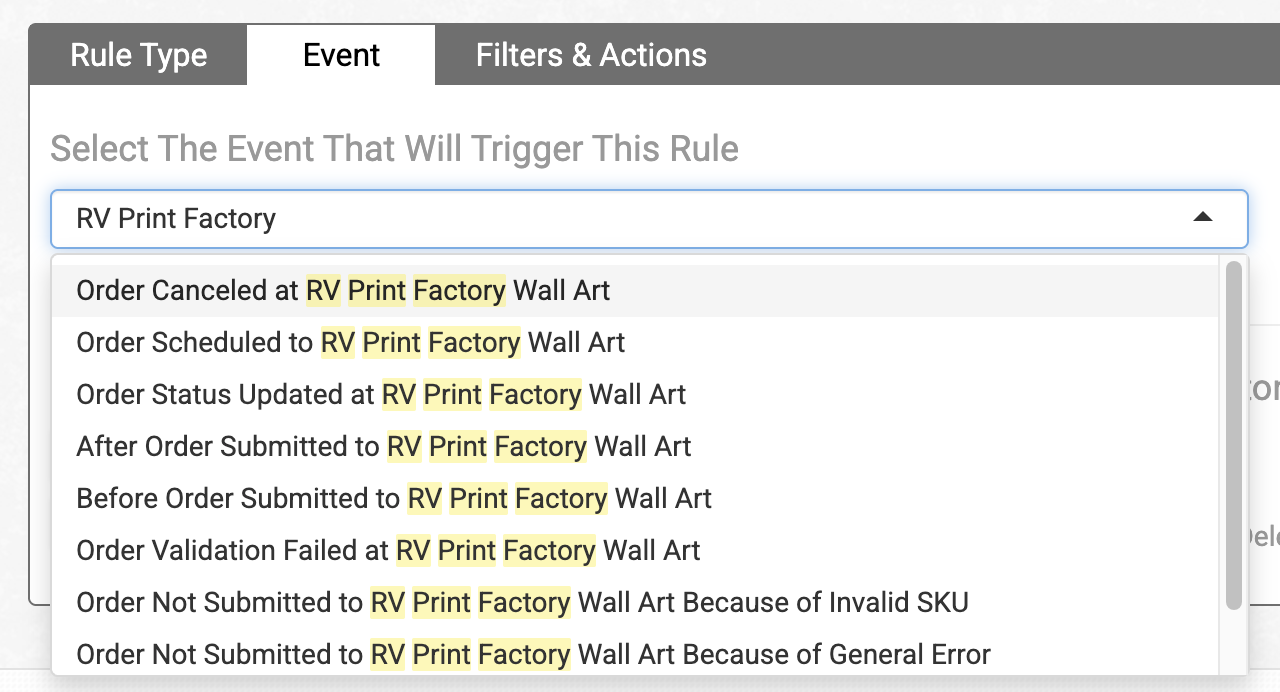
The following events are specific to RV Print Factory. To find them, type RV Print Factory in the Event dropdown menu in the Rule Builder:
| Event | Description |
|---|---|
| Order Canceled at RV Print Factory Wall Art | Triggers when an order is canceled at RV Print Factory. |
| Order Scheduled to RV Print Factory Wall Art | Triggered when an order is scheduled to be sent from Order Desk to RV Print Factory.This triggers immediately after the order is scheduled to be sent, so it can be used when you want to take immediate action on the order at that point. |
| Order Status Updated at RV Print Factory Wall Art | Triggers when there’s a change in the status of an order at RV Print Factory. |
| After Order Submitted to RV Print Factory Wall Art | Triggers after an order has been successfully submitted to RV Print Factory. |
| Before Order Submitted to RV Print Factory Wall Art | Triggered just before an order is sent from Order Desk to RV Print Factory. This is useful in cases where you want to make last-minute updates before an order is sent. |
| Order Validation Failed at RV Print Factory Wall Art | Triggered if an order fails validation after submission to RV Print Factory. |
| Order Not Submitted to RV Print Factory Wall Art Because of Invalid SKU | Triggers when an order submission fails because one or more SKUs aren’t valid in RV Print Factory. |
| Order Not Submitted to RV Print Factory Wall Art Because of General Error | Triggers when a general error prevents the order from being submitted to RV Print Factory. |
| Order Not Submitted to RV Print Factory Wall Art Because No Products Available | Triggers when an order submission fails because no valid products were found for submission. |
Rule Actions
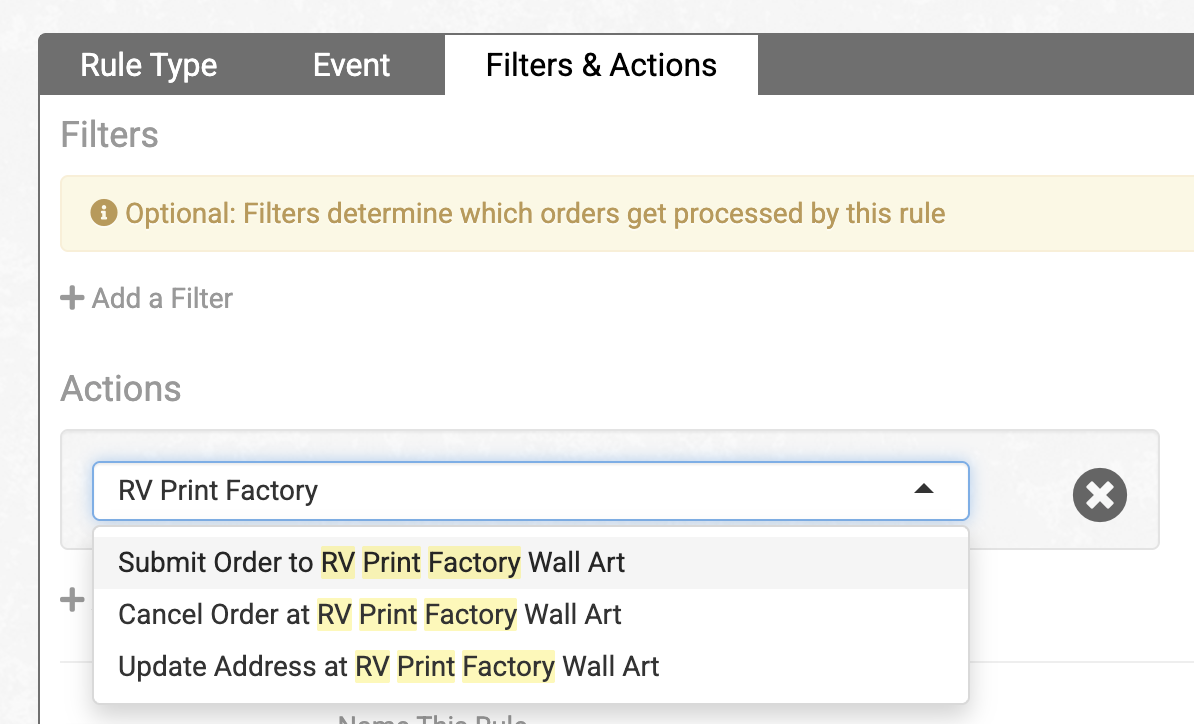
RV Print Factory also supports specific rule actions that you can apply to your orders. These can be found in the Actions dropdown by searching for RV Print Factory:
| Action | Description |
|---|---|
| Submit Order to RV Print Factory Wall Art | Sends an order from Order Desk to RV Print Factory. |
| Cancel order at RV Print Factory Wall Art | Sends an order cancelation request to RV Print Factory. |
| Update Address at RV Print Factory Wall Art | Sends a request to update an order shipping address at RV Print Factory. This works only if the order hasn’t been shipped yet. |