
Order Desk can import orders from your shopping cart(s), sync in your print details and then automatically send them on to Dream Junction for fulfillment. When orders are shipped, the tracking details will be sent back to Order Desk and back to your shopping cart if your store is set up for it.
Setup
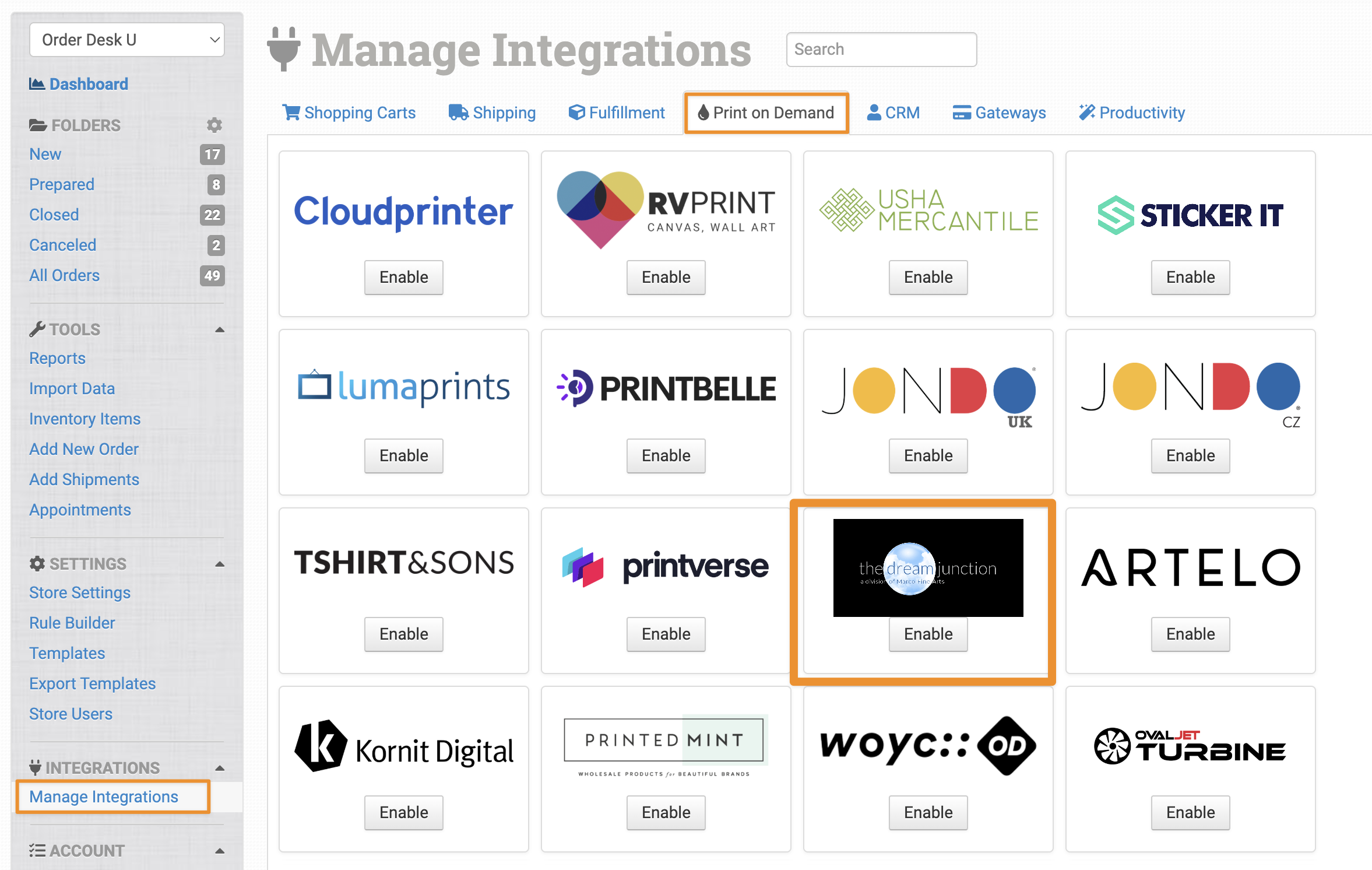
To connect to Dream Junction, click on the Manage Integrations link under the Integrations menu in the left sidebar, and under the Print on Demand tab find and enable Dream Junction.
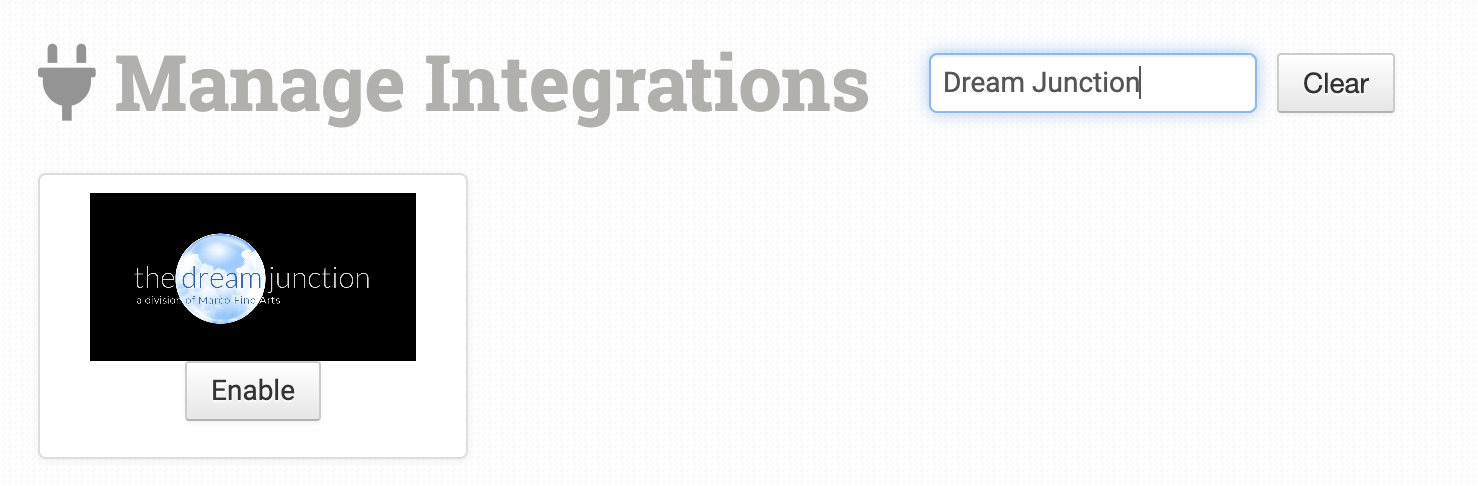
Alternatively, search for Dream Junction from the available integration search.
Enter your API Token and account details on the next page, then click the Connect to Dream Junction button:
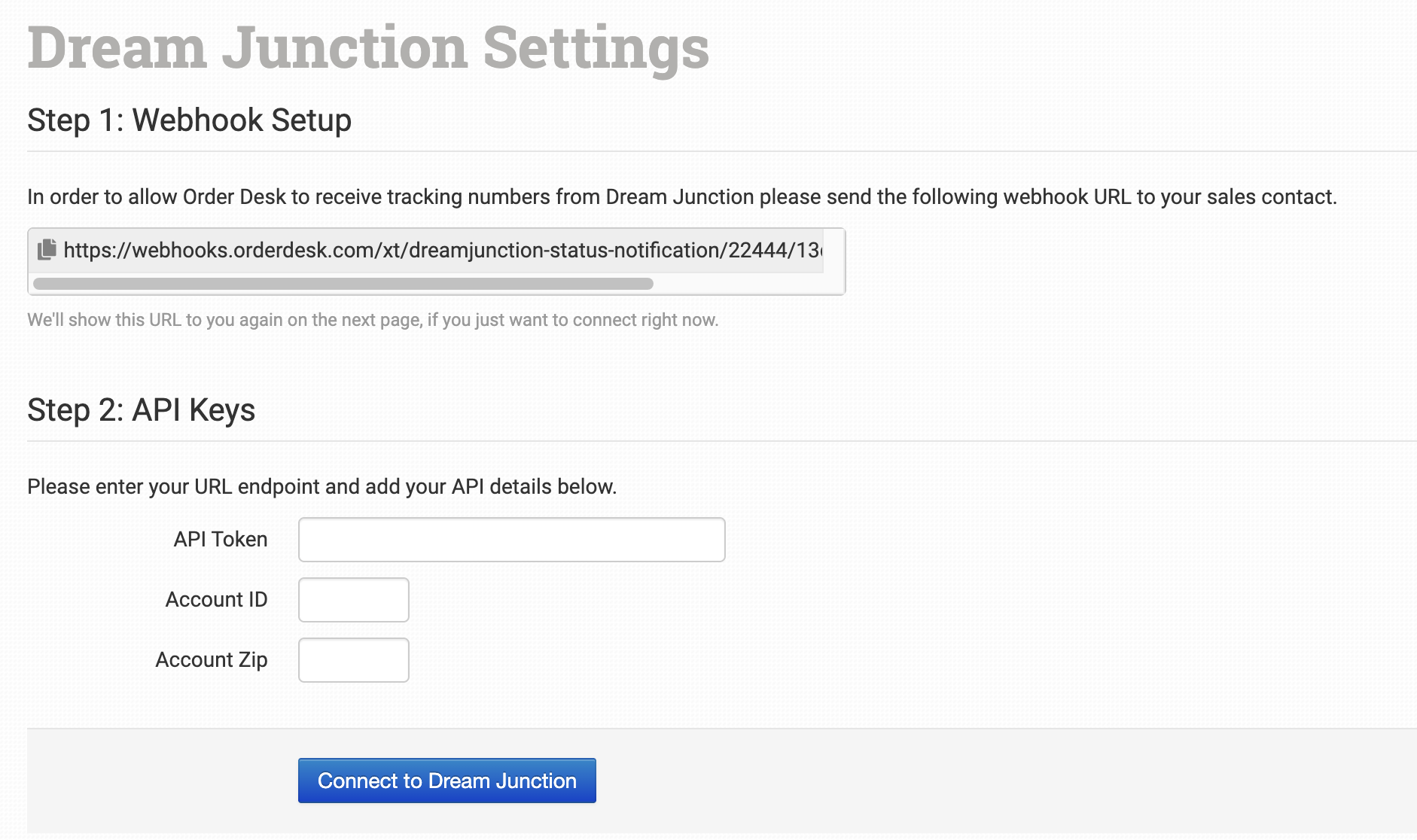
Please note that Order Desk isn’t able to help find or reset your credentials, as they can only be provided by Dream Junction.
Integration Settings
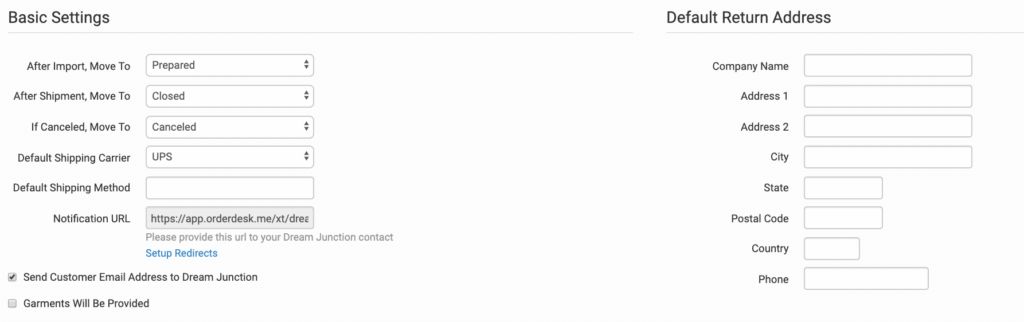
Once connected, you’ll have some shipment and integration settings to adjust per your preferences.
After Import, Move To
Select the folder you want orders to be moved into after they are successfully sent to Dream Junction.
You can use one of the default folders already in your store or create your own. Read the Working with Folders guide for more information.
After Shipment, Move To
Select the folder you want orders to be moved into after Dream Junction sends shipment details back to Order Desk.
If Canceled, Move To
Select the folder you want orders to be moved to if they are canceled at Dream Junction.
Default Shipping Carrier
Choose the shipping carrier you want Dream Junction to use for your orders.
Default Shipping Method
Choose the shipping method you want Dream Junction to use for your orders.
Notification URL
Give this notification URL to your Dream Junction contact and ask them to send shipment notifications to it. This is how they will connect back to Order Desk to send tracking details as they ship your orders.
This URL does not change between staging and production environments.
Setup Redirects
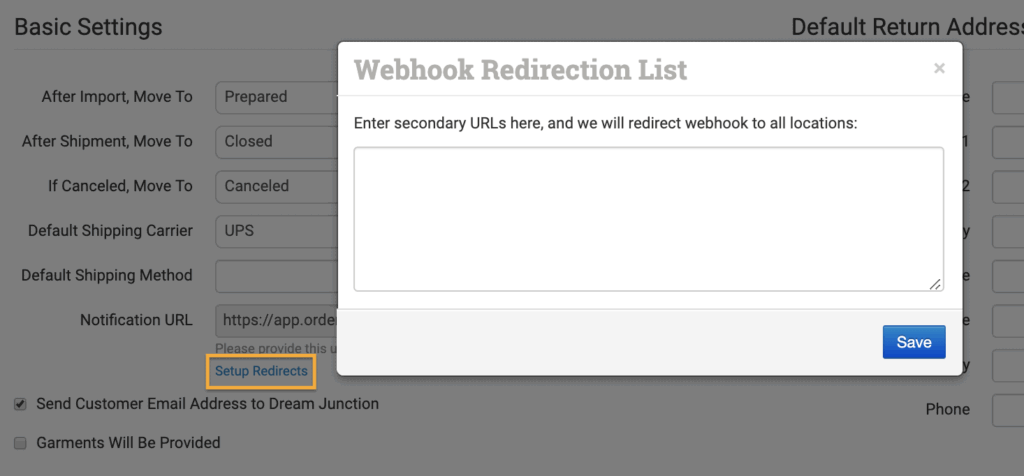
If you have Dream Junction connected to more than one Order Desk store for the same account, instead of adding the notification URL for each connection to Dream Junction, add any additional notification URLs from other connections to your primary account. Add one URL per line.
When Dream Junction ships your items, these redirects will help the shipments find their way back into the Order Desk store the orders came from.
Send Customer Email Address to Dream Junction
Select this setting if you want customer email addresses to be included with the order details that are sent to Dream Junction.
Garments Will Be Provided
Select this setting if you will be providing the garments for Dream Junction to use for printing.
Default Return Address
Set the default return address that Dream Junction should use on your shipments.
If you need to customize the return address for certain orders, you can save different return addresses to your Store Settings and then use a rule to set the return address to specific orders. If a return address is not added to the order, the default address set here in the Dream Junction settings will be used.
For information on adding additional return addresses and applying them to specific orders with a rule, read the Store Settings guide.
Product Settings

For more information on what these product settings within the Dream Junction integration are for, please refer to the Print on Demand Product Settings guide.
Custom Details for Dream Junction
Getting your orders ready to send to Dream Junction will take some set up time. For a detailed walkthrough of how to use Order Desk with your Print on Demand orders, please read through our Print on Demand Fulfillment guide.
Custom Item Details
The following fields can be set as variations or item metadata for each item in an order. Replace _x with a number value if more than one artwork file will be sent for a single item (print_url_2, print_location_2, print_preview_2, etc.)
| Field Name | Field Description |
| print_sku | Dream Junction’s internal SKU for the item. |
| custom_tag_code | Use code given to you by Dream Junction if using a custom tag. |
| print_location_ x | Default is unspecified. Start with ‘F’ or ‘B’ (front or back) and continue the descriptor as needed (i.e. Front Center, Back Bottom). Up to 12. |
| print_url_ x | The URL for your artwork file. Google Drive links will not work with Dream Junction. Up to 12. |
| print_preview_ x | The URL for the preview of your finished product. The “image” field will be used if nothing is entered. Up to 12. |
| print_underbase_ x | Set the value to TRUE or FALSE (case sensitive) to indicate whether a white underbase layer should be applied before the art. If nothing is set, the default is FALSE. underbase or underbase_1 are also accepted field names. Up to 12. |
| print_xoffset_ x | Integer in millimeters (mm) to place the artwork horizontally from the origin point of the printer. Up to 12. |
| print_yoffset_ x | Integer in millimeters (mm) to place the artwork vertically from the origin point of the printer. Up to 12. |
| print_width_ x | Floating number width in inches (in) to print the artwork. Up to 12. |
| print_height_ x | Floating number height in inches (in) to print the artwork. Up to 12. |
| print_note_ x | Any additional information about the print design. Up to 12. |
| decoration_type | Use to set the decoration type. Options are dtf or dtg. |
Custom Order Details
The following details can be submitted for an order as either checkout data or order metadata.
| Field Name | Field Description |
| InsertImage | The URL for a custom insert image. |
| ShippingProvider | UPS, FedEx, or DHL. If not provided, the default setting will be used. |
| ShippingMethod | If not provided, the default setting will be used. |
| GarmentsProvided | TRUE or FALSE. If not provided, the default setting will be used. |
| OrderNotes | Any notes that should be passed along with the order. |
| ProductionPriority | Normal or Express. Defaults to Normal. |
| PackingSlip | URL for the PDF to be included as the packing slip with the order. Details here. |
| TrackingNumber | If sending a shipping label, please pass the tracking number on the label for customer service reasons |
| ShippingLabel | Link to a shipping label you want to be used with the order |
| ReferenceNumber | Set an internal reference identifier for the order. |
If you are unfamiliar with checkout data, see the How to Work with Checkout Data guide.