
Order Desk can connect to Stuller’s Jewelry fulfillment service and send your orders to them for fulfillment. As they ship your orders, tracking details will be sent back into Order desk and back through to the original shopping cart.
Setup
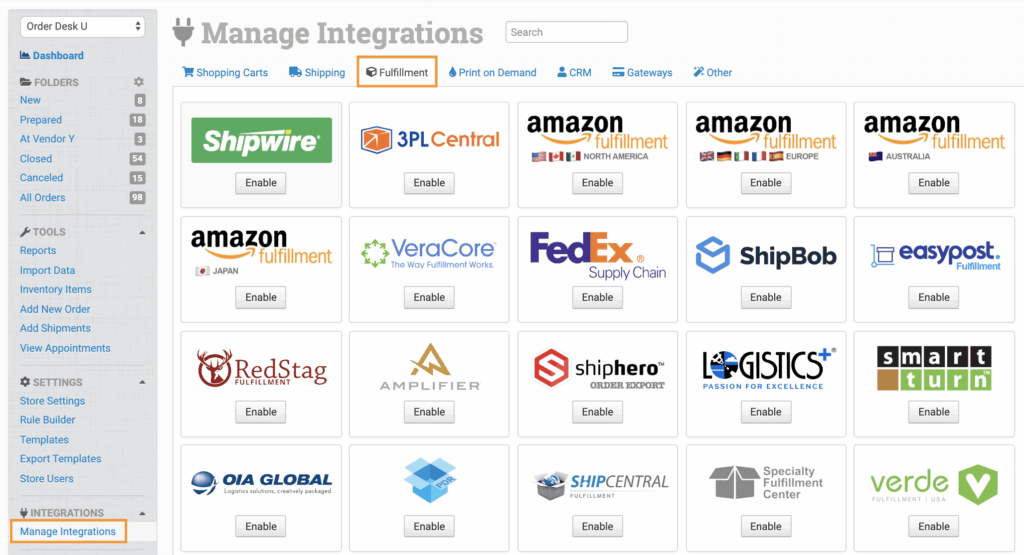
To connect the Stuller integration, click on the Manage Integrations link in the left sidebar and under the Fulfillment tab find and enable Stuller.
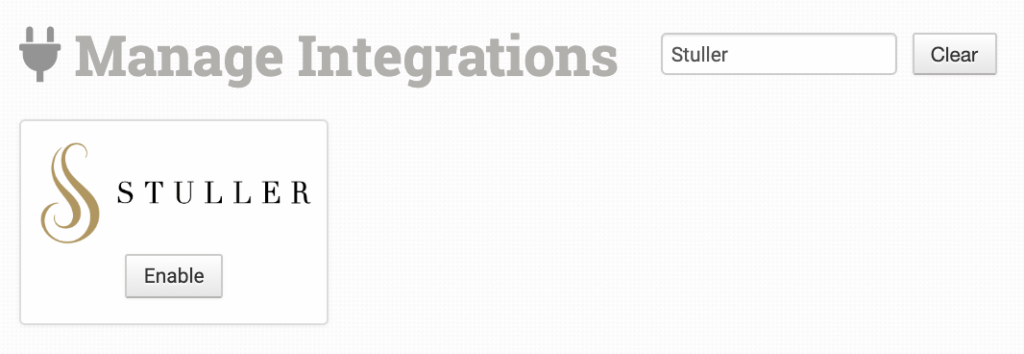
Alternatively, search for Stuller from the available integrations search.
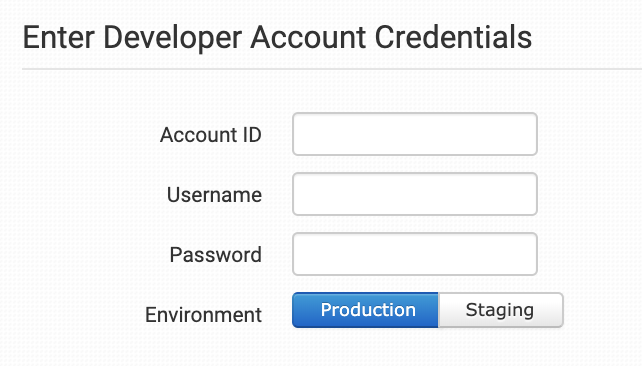
Once enabled, enter your Stuller credentials. Your credentials are for the developer API connection and not what you use to login to your Stuller account.
Once entered, select your environment, Production for live or Staging for test and click to connect.
Integration Settings
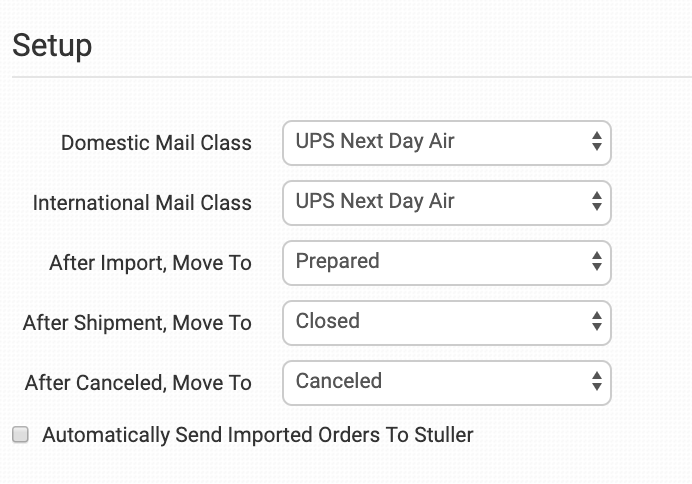
After you have connected the integration, you can apply your preferences in the settings.
Mail Classes
Select your preferred domestic and international mail classes. The shipping methods selected will be used for all orders sent to Stuller unless, where different, the shipping method on the order matches Stuller’s method name exactly.
If you need Stuller to use a specific shipping method on an order by order basis rather than defaulting to these settings, set your preferences in the Shipping Class Match section.
After Import, Move To
Select the folder you want orders to be moved into after they are successfully sent to Stuller.
You can use one of the default folders already in your store or create your own. Read the Working with Folders guide for more information.
After Shipment, Move To
Select the folder you want orders to be moved into as Stuller sends shipment details back to Order Desk.
After Canceled, Move To
Select the folder you want orders to be moved into if they are canceled at Stuller.
Automatically Send Imported Orders to Stuller
If selected, every order that is added to Order Desk will automatically be sent to Stuller.
Select this setting only if all orders will be sent to Stuller. If any orders will not be sent, or if you need a delay between when an order is imported into Order Desk and when it is sent do not select this.
Advanced Settings
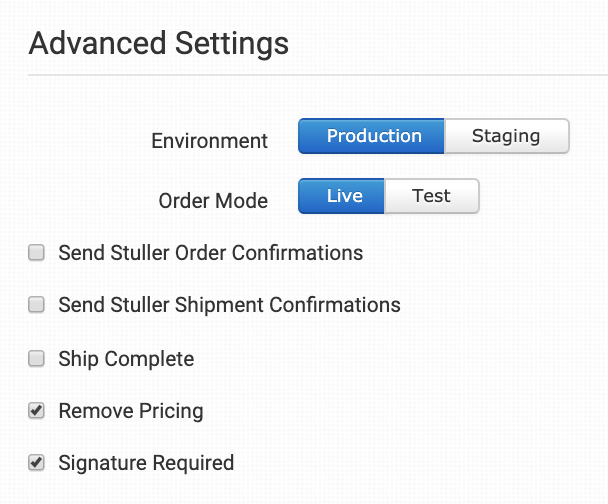
Select the advanced settings you want applied to the orders that are sent to Stuller.
Inventory Management Settings
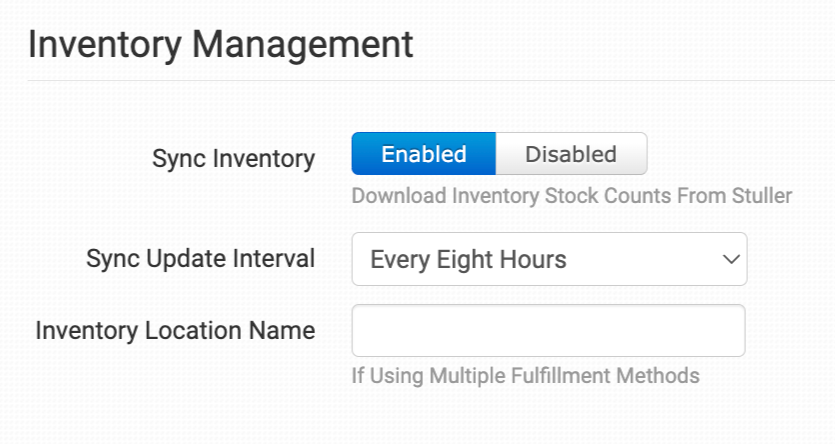
Sync Inventory
Enable if you want your inventory stock counts to be pulled in from [integration name].
For more information, see the How to Work with Inventory Counts guide.
Sync Update Interval
If Sync Inventory is enabled, choose how often you want Order Desk to check [integration name] for inventory updates.
Inventory Location Name
If you want to set a specific inventory location name for the products you have at [integration name], set that name here. As [integration name] sends back reports, your custom name will be added as the location.
Shipping Class Match

If the shipping methods you set up in your shopping cart(s) don’t match the shipping method names Stuller uses, they won’t know what methods you intend for them to use. When this happens, the default mail classes applied above will be used instead for all of your orders.
To tell Stuller what methods you want them to use, you will need to match your method names to theirs. This can be done in the shipping class match section. For detailed instructions on setting this up, please read through the shipping class match guide.
Custom Options & Limitations
Custom Options
To customize the details or instructions that are sent to Stuller for a particular order, you can set the following checkout data fields on the order:
| Field Name | Field Description |
| PONumber | The customer’s PO Number. |
| Instructions | Instructions for Stuller about the order. |
| OrderType | Default is 3PL. |
| Message1 | The value for the first message field. |
| Message2 | The value for the second message field. |
| PackingSlip | URL for the PDF to be included as the packing slip with the order. Details here. |
| ShippingLabel | The URL of your preferred shipping label can be passed here. |
If you are unfamiliar with checkout data, see the How to Work with Checkout Data guide.
Additionally, the following items can be set as item metadata in items in your order:
| Field Name | Field Description |
| StullerSKU | The item SKU in Stuller. |
| RingSize (or Size) | Set the ring size. |
| stone_number_x | Set a SKU for the stone. Up to 4. |
| stone_location_x | Set a location for the stone. Up to 4. |
| customer_stone_value_x | Set a value for the stone in the event that it’s supplied by the customer. Up to 4. |
| StullerMatchingChain | Use to add a matching chain SKU to items that are compatible with chains (e.g. pendants). |
| StullerMatchingChain2 | Use to add a second matching chain SKU to items that are compatible with chains (e.g. pendants). |
| GiftWrap | Add a gift wrap option. |
Engraving Options
The following items can be set as item metadata for items in your order that are meant to be engraved:
| Field Name | Field Description |
| font_type | Sets the font type. Accepted values are:MonolineLucida HandwritingOld EnglishScript MT BoldColonnaEdwardian ScriptBookmanHelveticaTypewriterP22 Corinthia |
| engraving_line_location_x | Location of the engraving. Up to 4 (e.g. engraving_line_location_1, engraving_line_location_2). |
| engraving_line_text_x | Sets the engraving line for items that allow for multiple lines. Up to 4. Each line location has a character limit:engraving_line_text_1: 8 charactersengraving_line_text_2: 13 charactersengraving_line_text_3: 8 charactersengraving_line_text_4: 8 characters |
| engraving_type | Sets engraving type (e.g. laser engraving, logo, etc.). |
| fill_option | Use to set engraving fill option if necessary. |
| fill_color | Use to set the color of the engraving fill if necessary. |
| special_finish | Use to set special finish. |
Limitations
Order Desk supports sending orders with payment terms, rings, and engraving information. If you need to submit chains, please contact Order Desk support.