
Some warehouses use software provided by Logiwa to manage their orders. If your fulfillment provider uses this software, Order Desk can connect to them through the Logiwa integration and send your orders for fulfillment.
As they fulfill your orders, the tracking numbers will be sent back into Order Desk and back through to the original shopping cart(s).
Setup
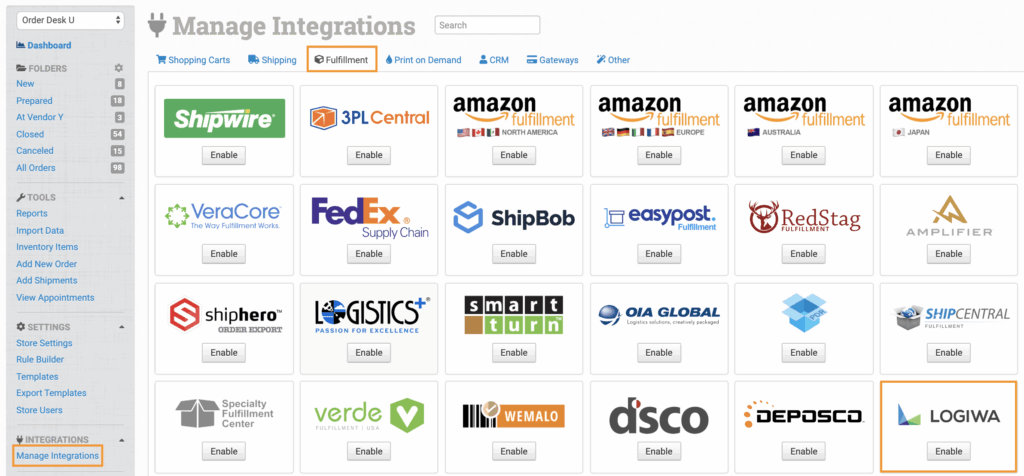
To connect the Logiwa integration, click on the Manage Integrations link in the left sidebar and under the Fulfillment tab find and enable Logiwa.
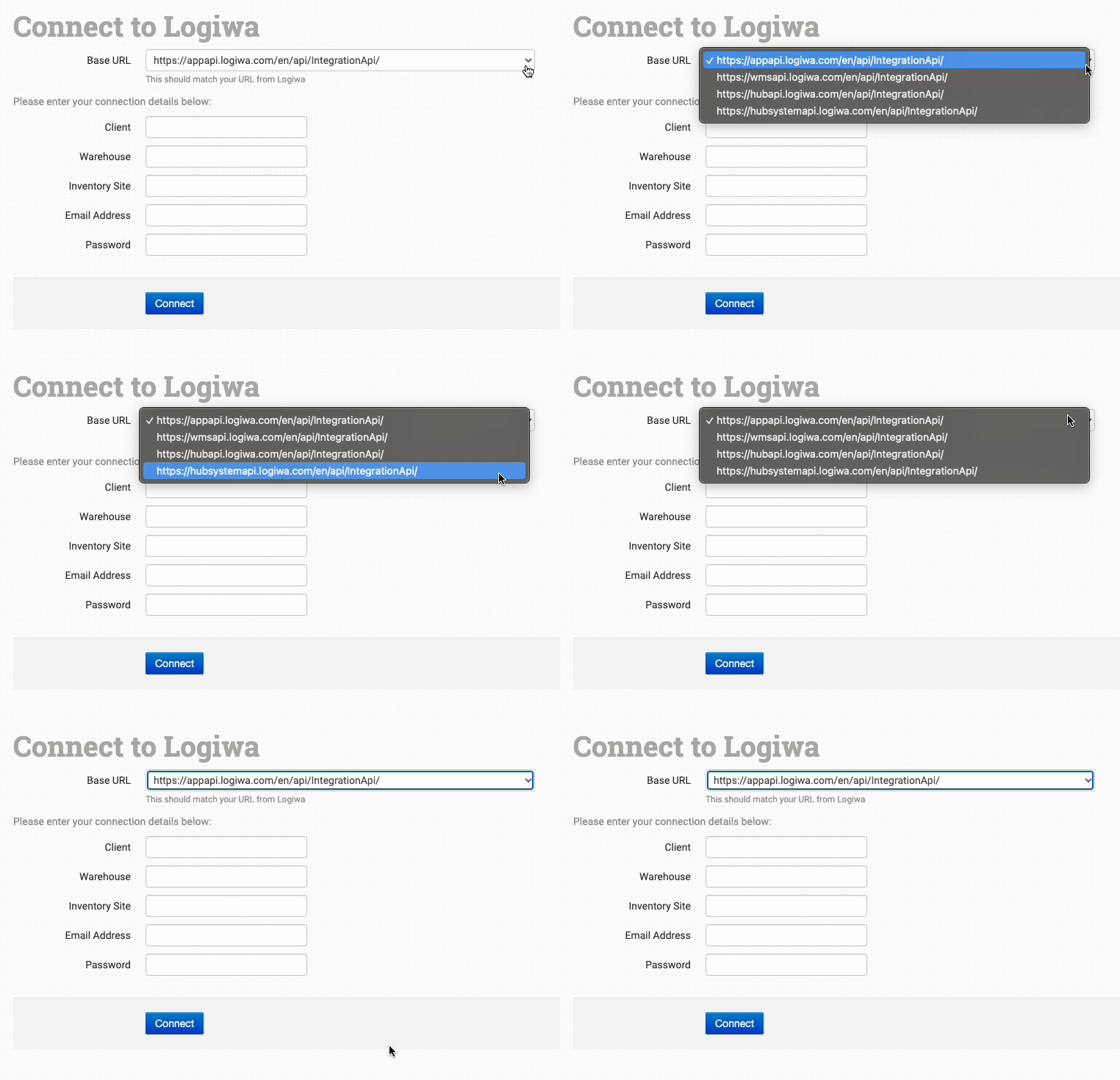
Once enabled, you’ll need to choose the correct Base URL, enter your Logiwa credentials, and click to connect.
Integration Settings
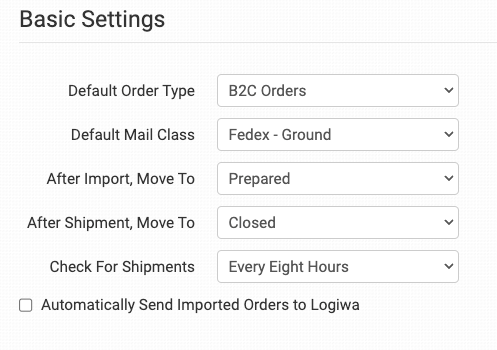
After you have connected the integration, you can apply your preferences in the settings.
Default Order Type
Select the default order type you want Logiwa to use for your orders.
Default Mail Class
Select the default mail class you want Logiwa to use for your orders. The shipping method chosen here will be used for all orders where the method on the order does not match any of Logiwa’s shipping method names.
If you need to apply specific methods for certain orders, match your method names to Logiwa’s names in the Shipping Class Match section below.
After Import, Move To
Select the folder you want orders to be moved into after they are successfully sent to Logiwa.
You can use one of the default folders already in your store or create your own. Read the Working with Folders guide for more information.
After Shipment, Move To
Select the folder you want orders to be moved into as Logiwa sends shipment details back to Order Desk.
Check for Shipments
Select how frequently you’d like Order Desk to check for shipment information from Logiwa.
Automatically Send Imported Orders to Logiwa
If selected, every order that is added to Order Desk will automatically be sent to Logiwa.
Select this setting only if all orders will be sent to your fulfillment provider. If any orders will not be sent, or if you need a delay between when an order is imported into Order Desk and when it is sent for fulfillment do not select this.
Inventory Management Settings

Sync Inventory
Enable if you want your inventory stock counts to be pulled in from Logiwa
For more information, see the How to Work with Inventory Counts guide.
Sync Interval
If Sync Inventory is enabled, choose how often you want Order Desk to check Logiwa for inventory updates.
Inventory Location Name
If you want to set a specific inventory location name for the products you have at Logiwa, set that name here. As Logiwa sends back reports, your custom name will be added as the location.
Skip Unlisted Items
Select to skip non-Order Desk items when your inventory syncs.
Product Settings
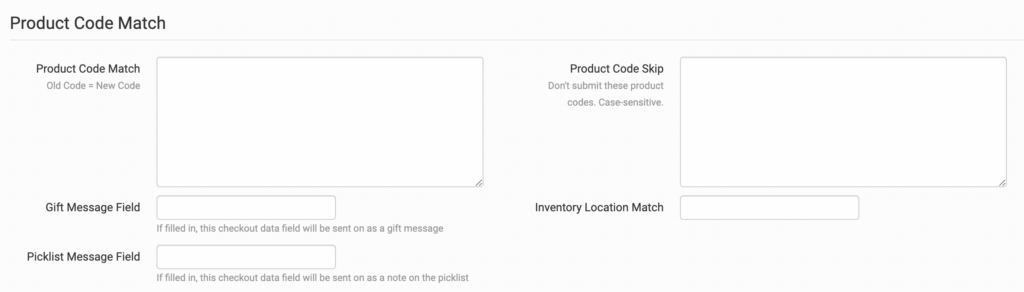
For more information on what these product settings in the Logiwa integration are for and how to use them, read the Fulfillment Integration Product Settings guide.
Shipping Class Match

The shipping methods that you have set up in your shopping cart(s) may not match the methods that Logiwa uses. To make sure your shipping preferences are sent through to Logiwa with each order, match your methods to theirs in the shipping class match feature. If matches aren’t made, Logiwa will use your default preference set above.
To learn in more detail about how to set up your shipping class matches, see the shipping class match guide.
Custom Details for Logiwa
Custom Item Details
To customize the details or instructions that are sent to Logiwa for a particular order item, you can set the following fields as item metadata or variations:
| Field Name | Field Description |
| FreeAttr_x | Use to pass item attributes to Logiwa. Up to 3 (e.g. FreeAttr_1, FreeAttr_2). |
| ChannelOrderDetailCode | Use to pass the detail code for each line item to Logiwa. |
Custom Order Details
To customize the details or instructions that are sent to Logiwa for a particular order, you can set the following checkout data fields on the order:
| Field Name | Field Description |
| Warehouse | Use to set your warehouse location. Default is the warehouse in your integration settings. |
| InventorySite | Sets the inventory site name. Default is set to inventory site in your integration settings. |
| InvoiceNumber | Use to set an invoice number with your order details. |
| OrderType | Use to set the order type. Default is the Default Order Type in your integration settings. If no default is set, B2C Orders will be used. |
| OrderStatus | Use this to set the order status. Default is Entered. |
| Channel | Use to set original channel on a per order basis. Default is order source (e.g. Shopify) |
| Driver | Sets the driver field. |
| Carrier | Use to override the carrier set by your integration settings. |
| ShipmentMethod | Use to override the shipment method set by your integration settings. |
| OrderRouting | Use to set order routing. |
| Depositor | Sets the depositor. If not set, the default will be the Depositor set upon connection. |
| DepositorReferenceCode | Use to set the client depositor reference code. |
| PackingNotes | Use to pass notes for packing. Please note: this field should not be used for a packing slip, which should be sent separately using the Upload Packing Slip to Logiwa rule action. For more information on the Rule Builder, see our guide on How to Work with Rules. |
| CarrierPrefix | Use this to set the carrier prefix. |
| PlannedShipDate | Use to set the planned ship date. Default is the next business day. |
| CustomerOrderNumber | Use to set customer order number. |
| CarrierBillingType | Use to pass the carrier billing type. |
| CarrierBillingAccountNumber | Use to pass the carrier billing account number. |
| Warehouse | Use to set your warehouse location. Default is the warehouse in your integration settings. |
| LatestDeliveryDate | Use to set the latest delivery date for your order. |
| AutoPrint | Set with a value of 1 to auto-print the order document when using an Upload Packing Slip rule action. |
Additional Fields
The following fields can be used to pass additional information with values as defined by Logiwa:
- ExtraNotes
- ExtraNotes1
- ExtraNotes2
- ExtraNotes3
- ExtraNotes4
- PlateNumber
- DropShipNotes
If you are unfamiliar with checkout data, see the How to Work with Checkout Data guide.