
Once your orders have been successfully imported into Order Desk and prepared for your fulfillment process, the method you use to export them will vary depending on your setup.
To an Integration
You can set up rules (which we’ll discuss in the last getting started guide) or adjust the settings in certain integrations to automatically submit orders. We recommend that you submit orders manually for the first few days until you have a better understanding of how the fulfillment process works in Order Desk. This also gives you the opportunity to correct any mistakes as you catch them, something that is harder to do when everything is running automatically.
After you are familiar with the flow of orders through Order Desk, have corrected any mistakes that cause errors, and you can trust that your integrations are set up properly by watching your orders pass through the app for a few days, it would be a good time to begin automating the process for your store. Before doing that, let’s look at how to submit orders manually.
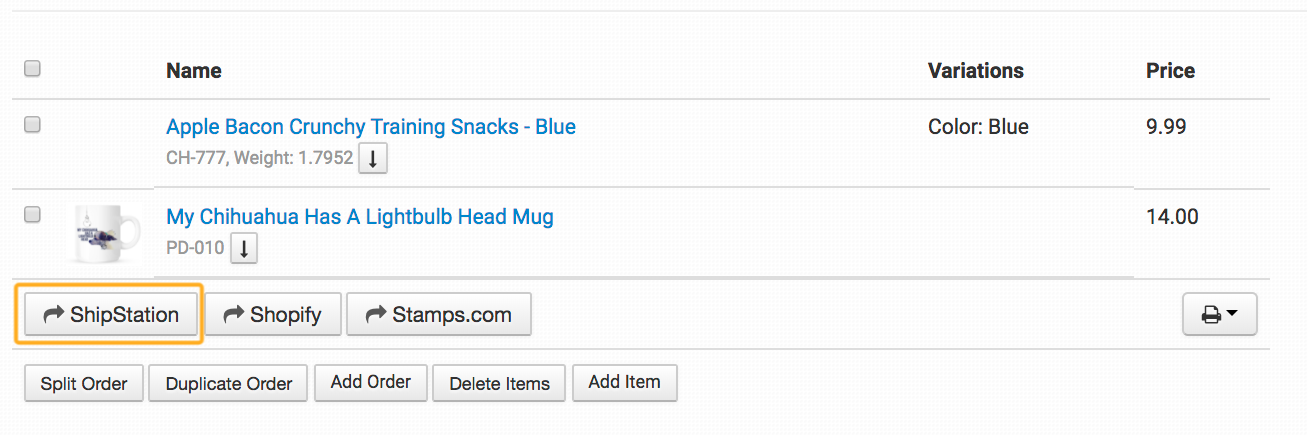
To submit an order manually to an integration, open up the order and look under the order details for a little button with the name of the fulfillment service you are sending it to. Click the button to submit the order to that service. For this order, we want to send it to ShipStation, so we’ll click the submit to ShipStation button:
However, there may be issues when you first submit an order. When you click to submit, the order queues up to go through to your fulfillment service. If you check back (or refresh the page) after a few seconds, scroll down and look at the order history section at the bottom of the page to see if the order submitted or not.
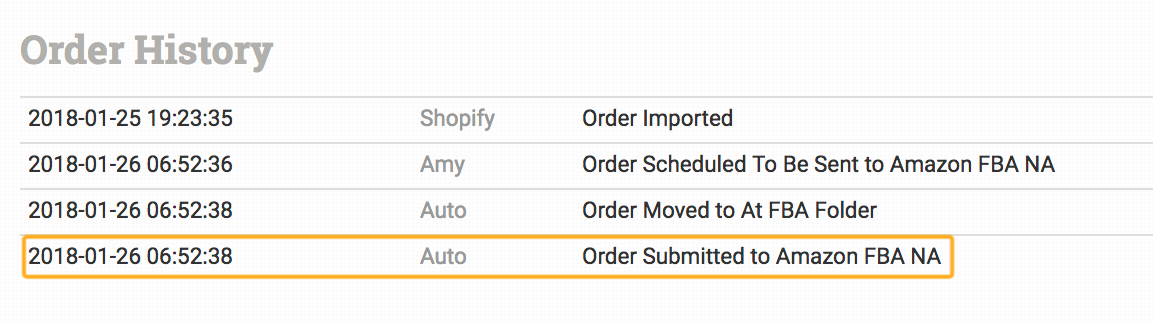
In most cases orders submit without any issues, but occasionally an order is rejected because something is wrong in the order per the fulfillment service’s requirements for submission. When this happens, an error message is passed through to Order Desk from the fulfillment service that gives the reason the order was rejected:
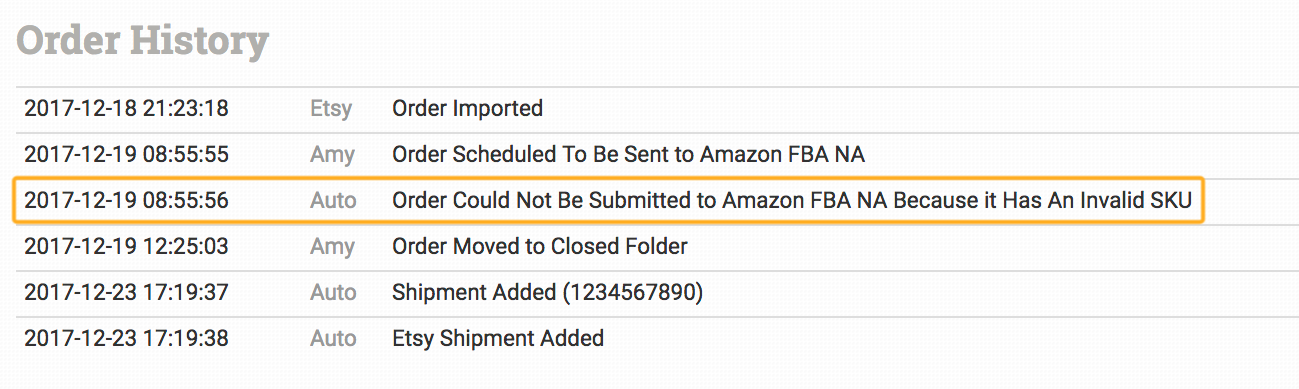
Some common errors include the address format being wrong, the SKU missing or being incorrect, the shipping country being unavailable for that fulfillment service, the shipping method not matching what the fulfillment service is expecting or the print file missing for print on demand items.
Based on the error message, fix the problem with the order and re-submit it. If the error message doesn’t make sense, you can reach out to Order Desk Support or to your fulfillment service for more help. In some cases, we may ask you to contact them, as we aren’t familiar with every error message we see from different services, but we’ll be happy to take a look at your order to help you figure out the problem.
To a Third Party Vendor
If you need to submit orders to a third party service that isn’t currently integrated with Order Desk, you can do this too. Typically the way Order Desk customers submit orders to third parties is to send them a dropship email with the order details. For more information on how to set up these emails, please review this guide on creating dropship email templates.
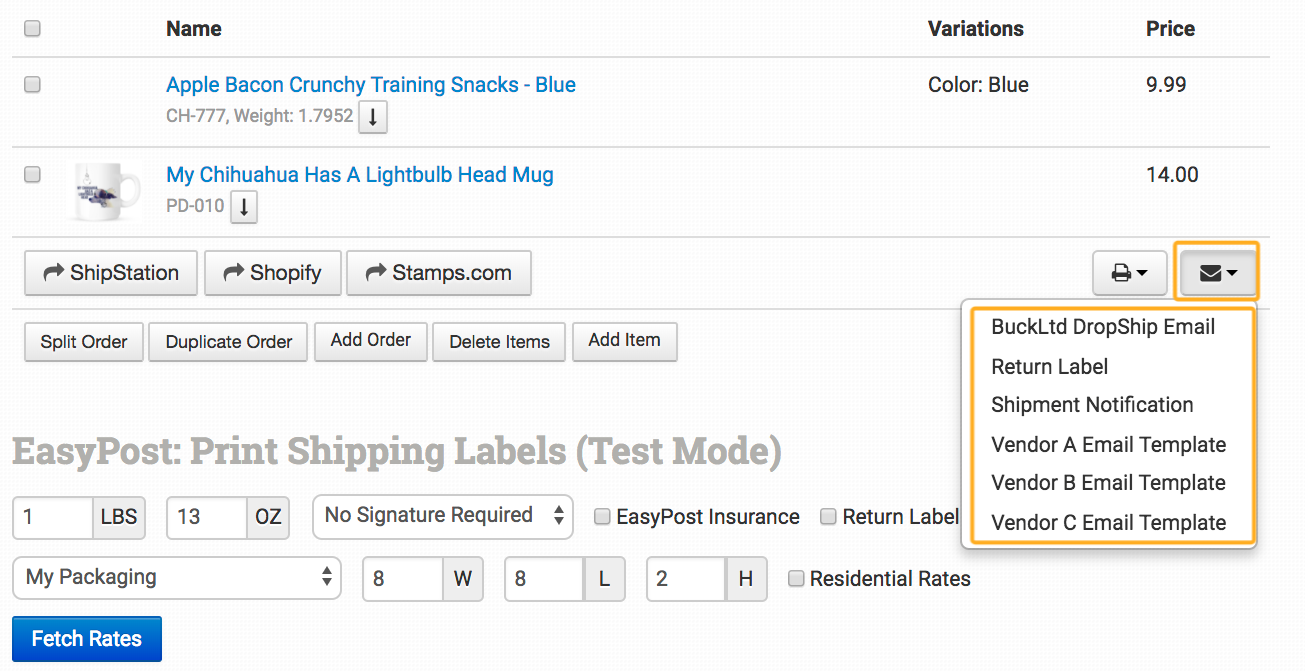
It isn’t necessary to create a rule yet to automate the process. If the email template has already been created, you can submit an order from the order details page by clicking on the email button and selecting the email template meant for your fulfillment service:
Another way to submit an order to a third party vendor is to export a CSV file. This is a more advanced option, requiring an export template to be created and sent through email or FTP. For more information on how to do this, please review this guide on How to Building Export Templates. If you need any help with this, please contact Order Desk Support.