
Manually Add Items
You can manually add products by going to Inventory Items under the Tools menu in the left sidebar. To add an item, click on the Add New Item button in the top right corner.
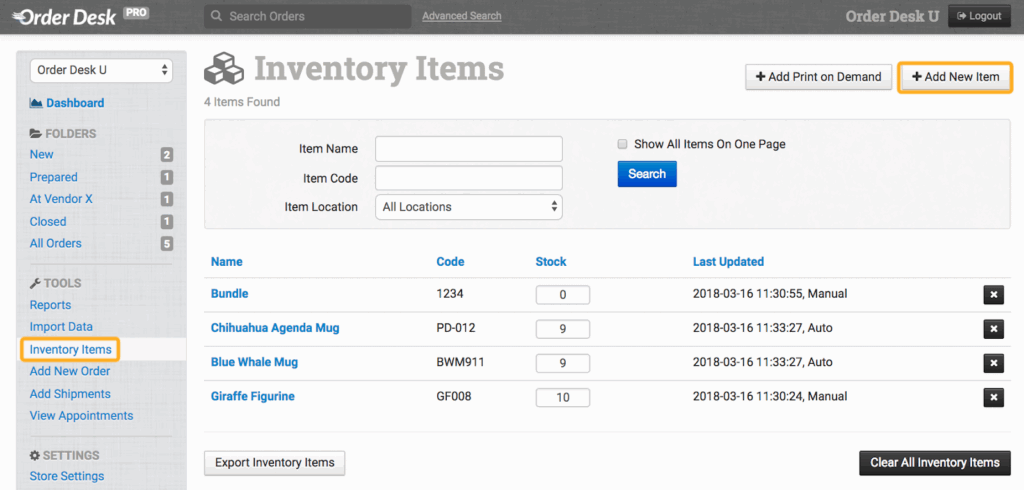
When adding your items, you must include a code/SKU.
You can also add print on demand items manually by clicking on the Add Print on Demand button. Print on demand products need extra information included, specifically a link to the print file and the printer’s product code. This option prompts you to fill in all the necessary details, but you can use the Add New Item option if you prefer. For more information on manually adding print details to your items, read through this section of the print on demand fulfillment guide.
Import File
If you need to import multiple products at once, you can use a spreadsheet. This will require creating an import template in Order Desk so you can match the field names from your file to the field names used in Order Desk.
For detailed instructions on how to import your inventory from a file, read the How to Import a Spreadsheet guide.
Import with Orders
Products can also be imported with your orders. When an order is added to Order Desk, if any items in the order are not yet stored here, they can be automatically added to the inventory.
To set up your Order Desk store to do this, go into your store settings page and look under the Inventory Settings section. Enable the Update Stock Level as Orders are Added and Create Inventory Items as Orders are Added settings:
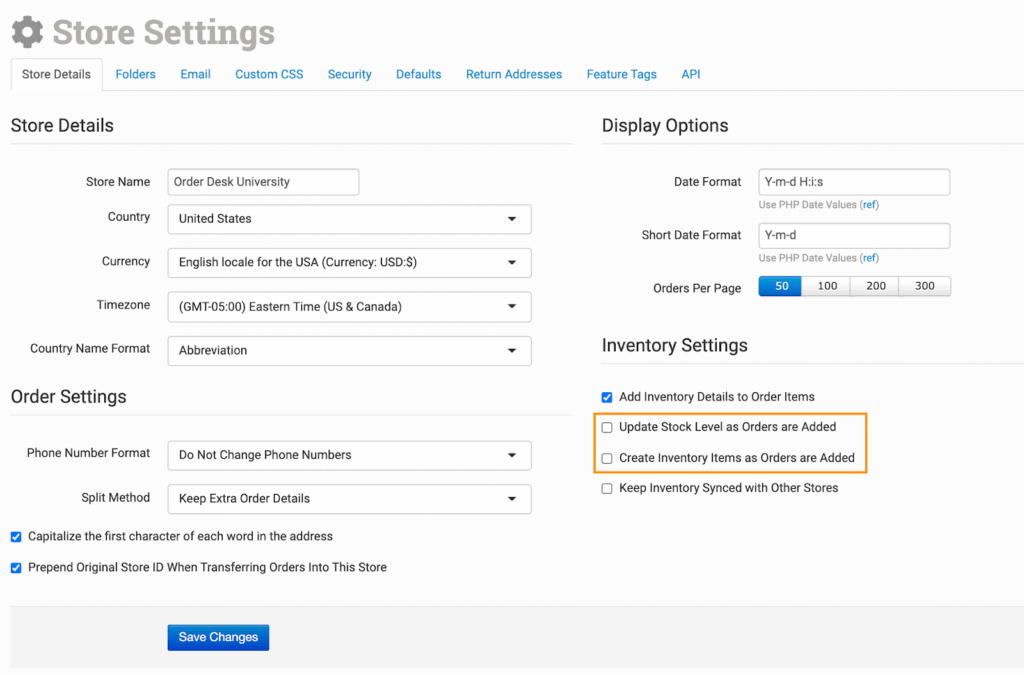
Both settings need to be enabled for this to work. When you import, download or create a new order, any product in the order will automatically be added to your inventory in Order Desk if it doesn’t already exist.
Import from Integration
Items can be added from integrations. Not all integrations have this feature, so check the settings page of any integrations you have enabled for an inventory import button like this:
If the integration you use supports this, you can manually import your inventory items by clicking this button.
Export Inventory Per Page
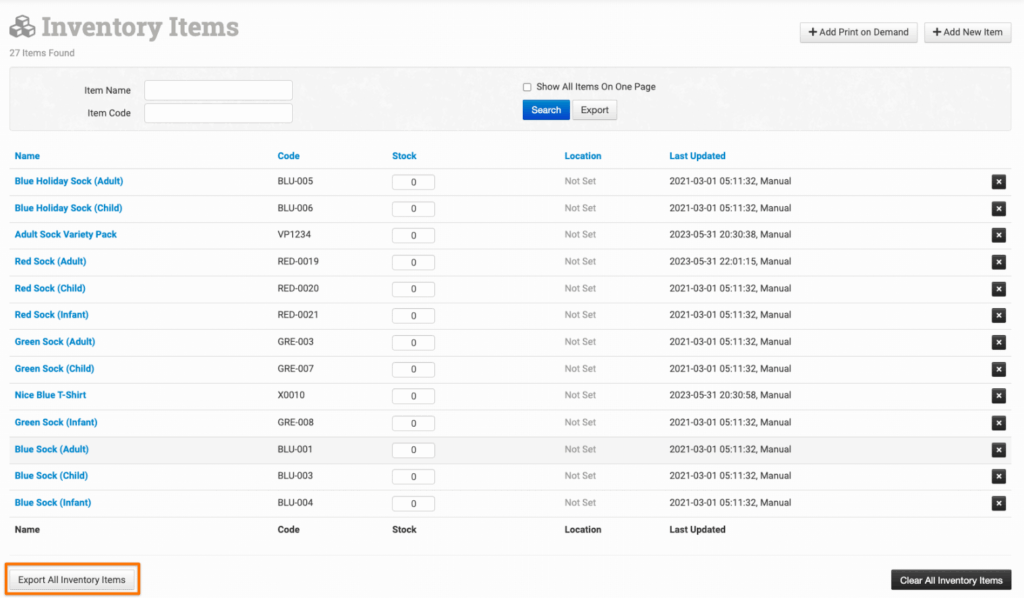
Items can be exported by page using the Export All Inventory Items at the bottom of each page in your Inventory Items.
Export Specific Inventory

Specific inventory items can be exported using the search function in your Inventory Items page. By adding search terms to the fields and clicking Export, only items in your inventory that meet the criteria will be exported.
For a more thorough overview of the Inventory Items page and working with your inventory once it has already been added to Order Desk, please refer to the How to Work with Inventory Details guide.