
Dropship from Order Desk
If you dropship your orders to separate vendors, please read through the Split and Dropship guide for more information on how to set up your Order Desk store so your orders are sent to the right fulfillment service.
There are several ways to send an order to a fulfillment service, but if you need to email them your order, come back to this guide when you’re ready to set up your dropship email template.
Email Templates
If you aren’t yet familiar with how email templates work in Order Desk, take a few minutes to read through the Working with Email Templates guide. Learn how to set up a new email template, how to make sure it gets sent to the right person or business, and, when you’re ready, you can come back to this guide to copy the dropship template into your email template.
Sample Dropship Template
This is an example of an email template that would send a dropship request to a fulfillment partner. This includes a link for the partner to enter the tracking number directly.
The variable field names are slightly different from the receipt template.
| <!DOCTYPE html PUBLIC “-//W3C//DTD HTML 4.0 Transitional//EN” “http://www.w3.org/TR/REC-html40/loose.dtd”> |
| <html> |
| <head> |
| <style type=”text/css”> |
| body { |
| font-family: Arial; |
| } |
| </style> |
| </head> |
| <body> |
| <p>Please fulfill the following order for {{ store_name }}:</p> |
| <p>{{ shipping.first_name }} {{ shipping.last_name }}<br> |
| {% if shipping.company %}{{ shipping.company }}<br>{% endif %} |
| {{ shipping.address1 }}<br> |
| {% if shipping.address2 %}{{ shipping.address2 }}<br>{% endif %} |
| {{ shipping.city }}, {{ shipping.state }} {{ shipping.postal_code }}<br> |
| {{ shipping.country }}</p> |
| <p> |
| <strong>Order ID: </strong>{{ source_id }}<br> |
| <strong>Order Date: </strong>{{ date_added|date_modify(“+0 hours”)|date(“m/d/Y”, store_timezone) }}<br> |
| </p> |
| <ul> |
| {% for item in order_items %} |
| <li> |
| <b>{{ item.name }}</b><br> |
| SKU: {{ item.code }}<br> |
| Quantity: {{ item.quantity }} |
| </li> |
| {% if item.variation_list|length > 0 %} |
| <ul> |
| {% for key, val in item.variation_list %} |
| <li>{{ key }}: {{ val }}</li> |
| {% endfor %} |
| </ul> |
| {% endif %} |
| {% endfor %} |
| </ul> |
| <p>Please click this link to confirm or enter tracking details: <a href=”{{ confirm_url }}”>{{ confirm_url }}</a></p> |
| {# <p><a href=”{{ id|receipt_link(0) }}”>Print Packing Slip</a></p> #} |
| <p>Thank you,</p> |
| <p><i>{{ store_name }}</i></p> |
| </body> |
| </html> |
view rawsample_dropshipping_email_template.txt hosted with ❤ by GitHub
If you don’t see the code, please click the expand button above to open this article in a full-size window.
Printable Packing Slip
Line 46 in the this template can be configured to include a link to a printable packing slip:
{# <p><a href="{{ id|receipt_link(0) }}">Print Packing Slip</a></p> #}
This line is commented out by default, meaning it won’t display in the final email that is sent to vendors unless you uncomment it by removing the {# #} symbols from the beginning and end of the line.
Add your receipt template ID to this line of code, replacing the 0 in receipt_link(0) .
The receipt template ID is found in the URL of your specific receipt template:
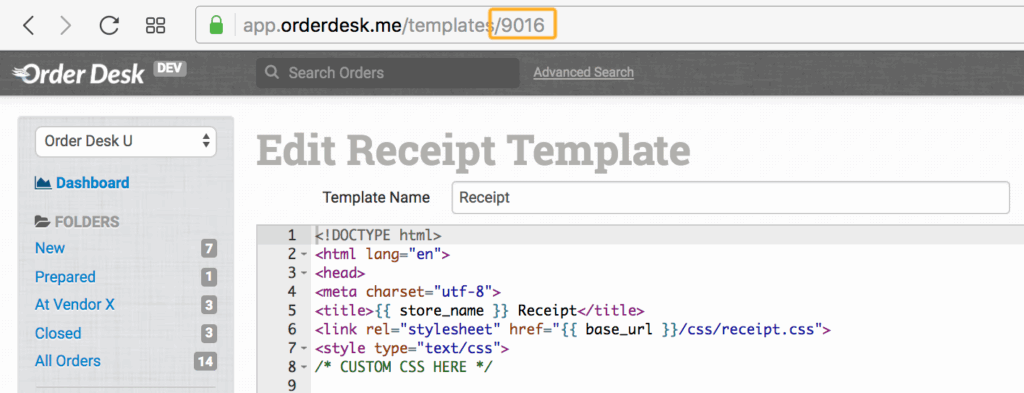
It should look like this in the template, with the unique receipt ID included:
<p><a href="{{ id|receipt_link(9016) }}">Print Packing Slip</a></p>