
Order Desk can import orders from your shopping cart(s), apply custom information and then submit them to Wemalo for fulfillment. When orders are shipped, the tracking details will be sent back to Order Desk and back to your shopping cart(s) if your store is set up for it.
Setup
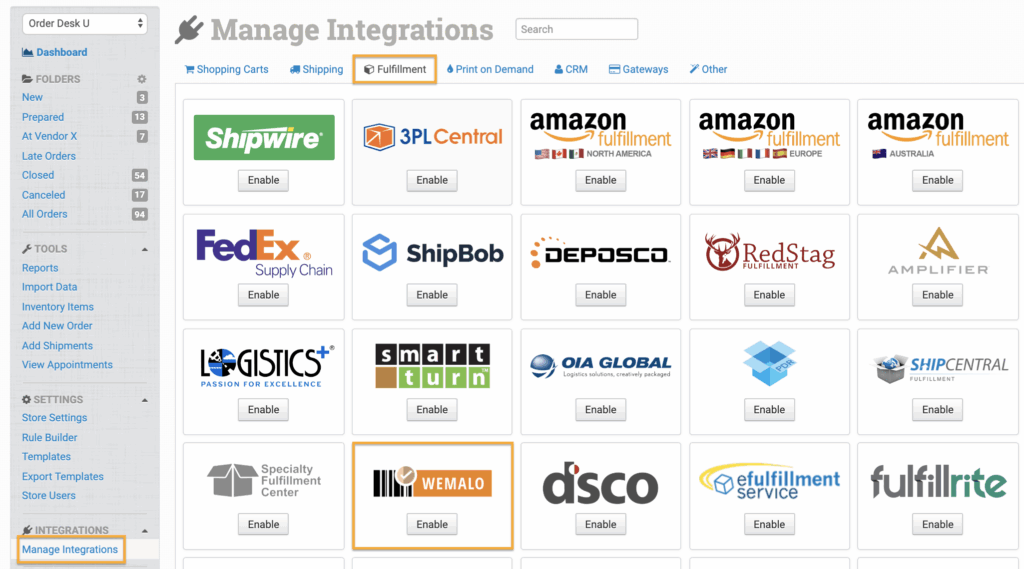
To connect to Wemalo, click on the Manage Integrations link in the left sidebar and under the Fulfillment tab find and enable the Wemalo integration.
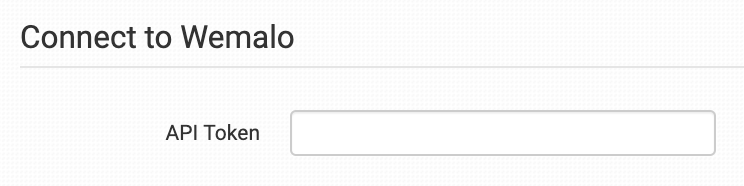
Enter your Wemalo API token and click to connect.
Integration Settings
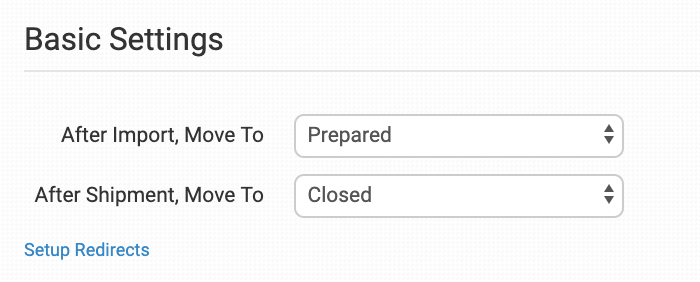
After you have connected the integration, you can apply any necessary details or preferences to the settings.
After Import, Move To
Select the folder you want orders to be moved into after they are successfully sent to Wemalo.
You can use one of the default folders already in your store or create your own. Read the Working with Folders guide for more information.
After Shipment, Move To
Select the folder you want orders to be moved into as Wemalo sends shipment details back to Order Desk.
Setup Redirects
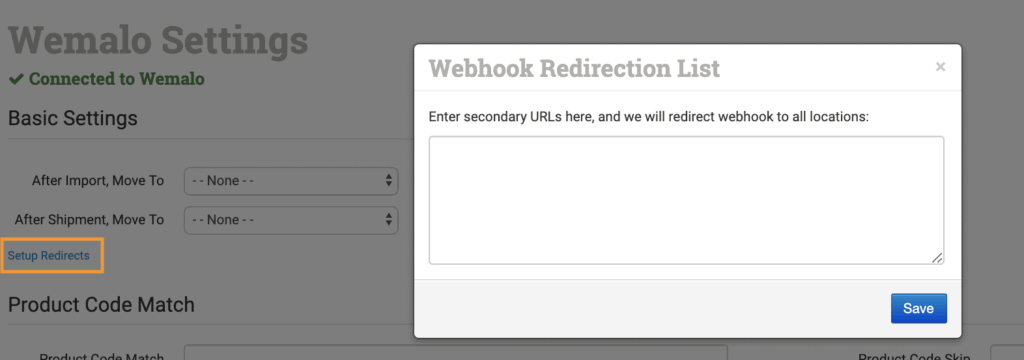
If you connect the same Wemalo account to more than one Order Desk store, you will need to setup some redirects so when the shipment info comes back from Wemalo, it will find its way to the right Order Desk store.
In your primary store, where the first connection to Wemalo was made, you will see Setup Redirects. Click this link to open your Webhook Redirection List. Then, in your other Order Desk stores that are also connected to the same Wemalo account, find the Notification URL:
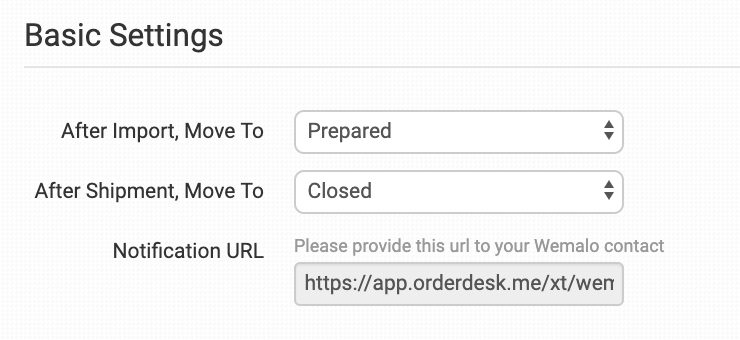
Copy this URL and paste it into the Setup Redirects field in your main store. Add one URL per line, making sure all notification URLs from your other Order Desk stores are included.
Inventory Management
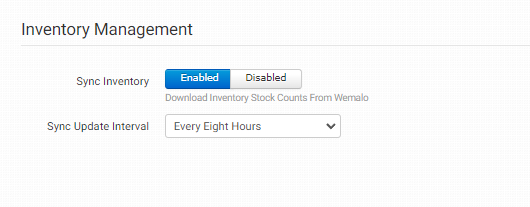
Sync Inventory
Enable this setting to download inventory stock counts from Wemalo.
Inventory Sync Interval
If the Sync Inventory setting is enabled, use this dropdown to select how often you’d like Order Desk to download inventory counts from Wemalo.
Product Settings

For more information on what these product settings in the Wemalo integration are for and how to use them, read the Fulfillment Integration Product Settings guide.
Sending Custom Details to Wemalo
To send documents to Wemalo with an order, you can add a link to the document as checkout data or order metadata. If you would like to create and use a PDF file in Order Desk for this, see this guide for details.
| Field Name | Field Description |
| PackingSlip or GOODSORDERCUSTOMSDOCUMENTS | URL for the document to be included as the Goods Order Document. |
| Receipt or BILL | URL for the document to be included as the bill with the order. |
| RETURNSHIPMENT | URL for the document to be included as the Return Shipment. |
| GOODSORDERDELIVERYNOTE | URL for the document to be included as the Goods Order Delivery Note with the order. |
| PONumber | This will go in the orderNumber field. If not set, regular Order ID will be used. |
| DescriptionOfGoods | Use to describe contents in shipment. If not set, default will be first item name from order. |
| DepartmentNumber | Department number of shipment. |
| FastSendWeight | The weight of your package in grams for fast send orders. |
| ExpectedDeliveryDate | Order will stay in “partially reserved” status until this date is reached. |
| Blocked | Enter 1 here for the order to be packed, but placed on hold until order is approved. |
| ExtraInfo | Any extra information you may want to include. |
| ExtraInfo2 | Any extra information you may want to include. |
| ExtraInfo3 | Any extra information you may want to include. |
| ExtraInfo4 | Any extra information you may want to include. |
For instructions on how to work with checkout data, please read the How to Work with Checkout Data guide.