
Order Desk can connect to your Recurly account and download your subscriptions.
Setup
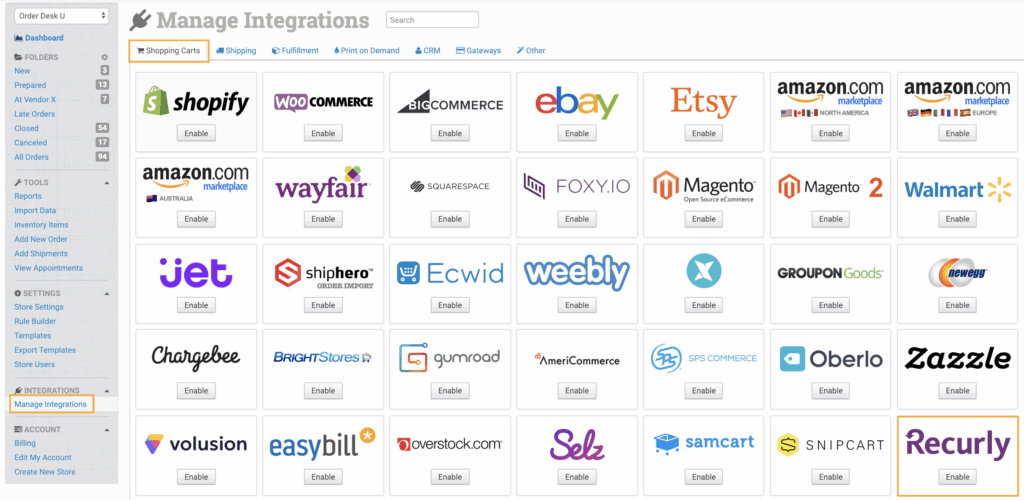
To connect to Recurly, click on Manage Integrations under the Integrations menu in the left sidebar. Under the Shopping Carts tab, find and enable Recurly.
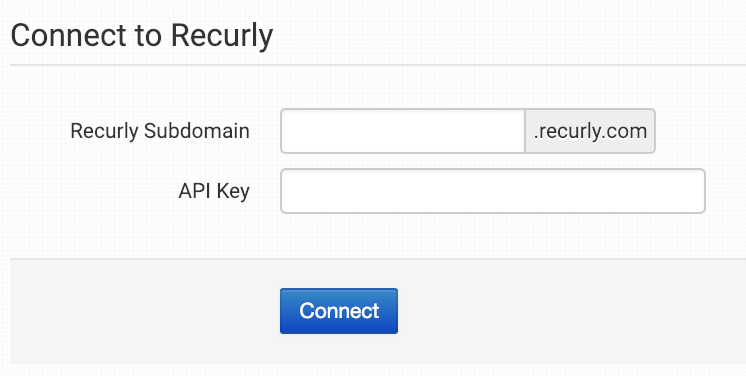
Once enabled, enter your Recurly subdomain and API Key then click to connect.
Integration Settings
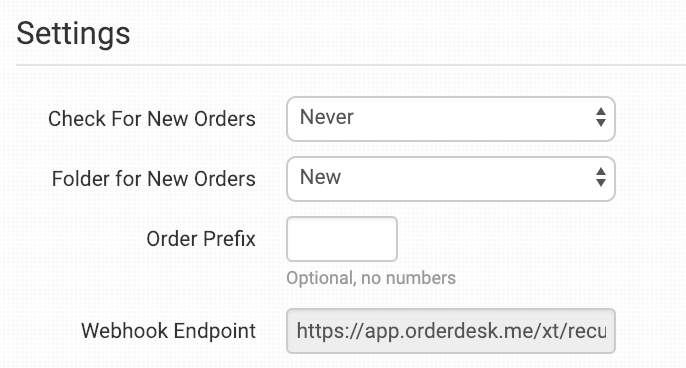
Once connected, you can set your integration preferences.
Check for New Orders
Select how often you want Order Desk to look for and download new orders from Recurly.
Folder for New Orders
Select the folder where newly imported orders from Recurly should be placed.
For more information, see the Working with Folders guide.
Order Prefix
If you need to, you can add a prefix of your choice that will be added to all orders downloaded from Recurly.
Webhook Endpoint
The webhook endpoint is used to tell Order Desk when there is a new order in Recurly. Copy the URL and paste it in your Recurly admin so Order Desk will get these notifications.
Manual Imports
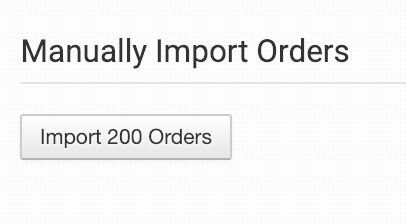
If you need to manually download orders, click the Import button in the Recurly integration settings. This will download the most recent 200 orders.