
Order Desk can import orders from your shopping cart(s), apply custom information and then submit them to FedEx Supply Chain for fulfillment. When orders are shipped, the tracking details will be sent back to Order Desk and back to your shopping cart(s) if your store is set up for it.
Setup
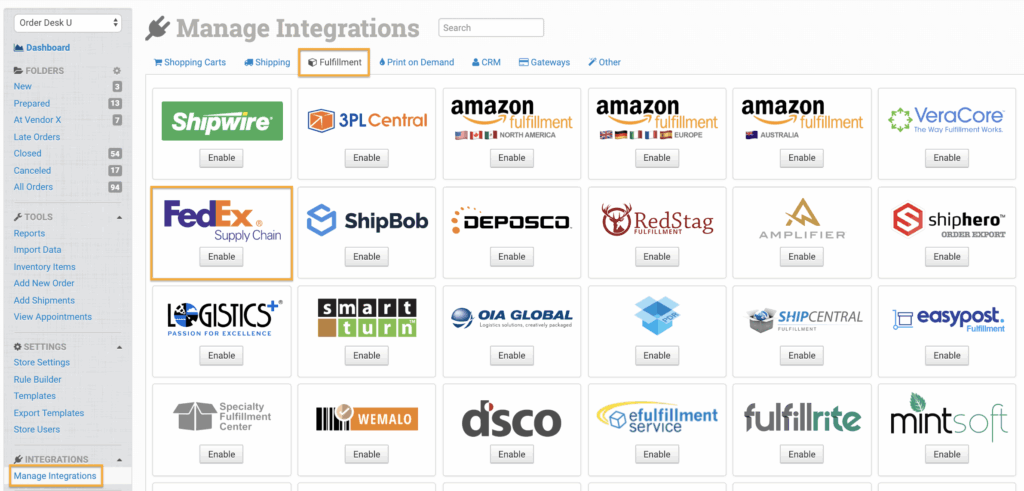
To connect to FedEx Supply Chain, click on the Manage Integrations link in the left sidebar and under the Fulfillment tab find and enable the FedEx Supply Chain integration.
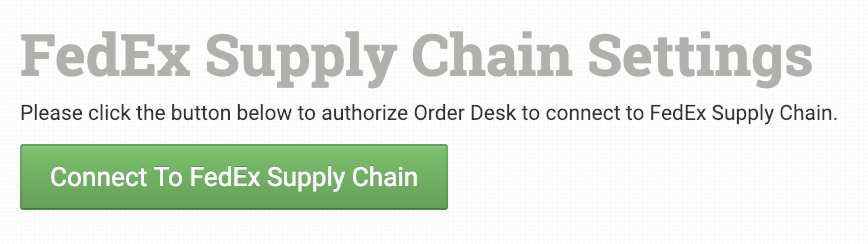
Once enabled, click the Connect To FedEx Supply Chain button. This will take you to FedEx to login to your account and create the connection to Order Desk.
Integration Settings

After you have connected the integration, you can apply your preferences to the settings.
Mail Classes
Choose the shipping classes you want FedEx Supply Chain to use for your US, Canadian and international orders.
If you need to apply specific methods for certain orders, match your method names to FedEx Supply Chain’s names in the Shipping Class Match section below.
After Import, Move To
Select the folder you want orders to be moved into after they are successfully sent to FedEx Supply Chain.
You can use one of the default folders already in your store or create your own. Read the Working with Folders guide for more information.
After Shipment, Move To
Select the folder you want orders to be moved into as FedEx Supply Chain sends shipment details back to Order Desk.
If Canceled, Move To
Select the folder you want orders to be moved into if they are canceled with at FedEx Supply Chain.
Check For Shipments
Select how frequently you’d like Order Desk to check for shipments associated with your orders.
Shipper Phone Number
FedEx requires a phone number for every shipment. To avoid delays or problems with orders that may not have a number, add a backup phone number you want to use on any orders where your customer has not provided one.
Send Customer Email Address to FedEx Supply Chain
Select if you want the email address on the orders to be sent to FedEx Supply Chain.
Automatically Send Imported Orders to FedEx Supply Chain
If selected, every order that is added to Order Desk will automatically be sent to FedEx Supply Chain.
Select this setting only if all orders will be sent to FedEx Supply Chain. If any orders will not be sent, or if you need a delay between when an order is imported into Order Desk and when it is sent to FedEx Supply Chain do not select this.
Inventory Management Settings
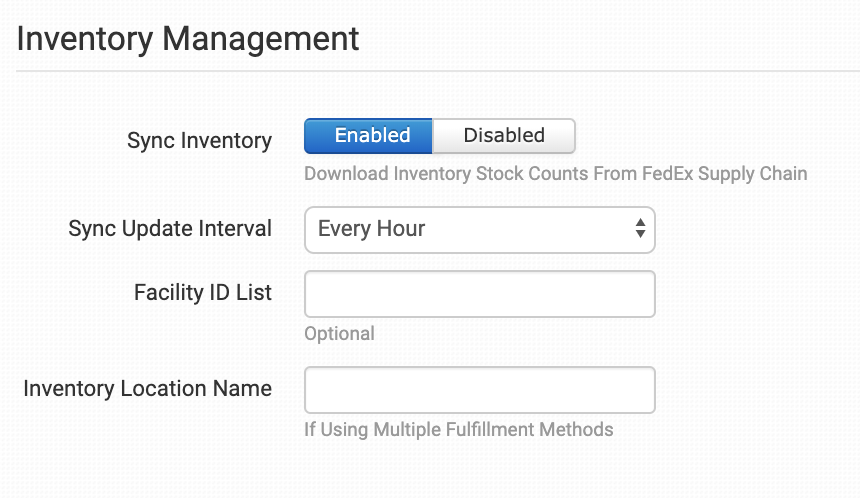
Sync Inventory
Your inventory imports will be set up by Order Desk support for you. You can enable this setting if you want to pull inventory counts back from FedEx Supply Chain more often.
For more information, see the How to Work with Inventory Counts guide.
Sync Update Interval
Choose how often you want Order Desk to pull in inventory updates from FedEx Supply Chain.
Facility ID List
Add info here if FedEx Supply Chain asks you to, otherwise leave empty.
Inventory Location Name
If you want to set a specific inventory location name for the products you have at FedEx Supply Chain, set that name here. As FedEx Supply Chain sends back reports your custom name will be added as the location.
Product Settings
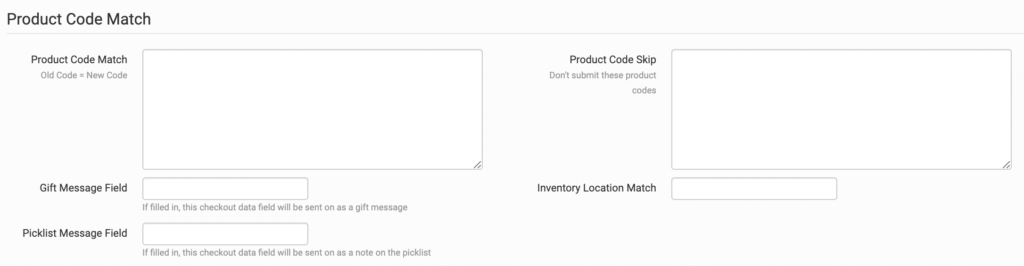
For more information on what these product settings in the FedEx Supply Chain integration are for and how to use them, read the Fulfillment Integration Product Settings guide.
Shipping Class Match

If the shipping methods you set up in your shopping cart(s) don’t match the shipping method names FedEx Supply Chain uses, they won’t know what methods you intend for them to use. When this happens, the default mail classes applied above will be used instead for all of your orders.
To tell FedEx Supply Chain what methods you want them to use, you will need to match your method names to theirs. This can be done in the shipping class match section. For detailed instructions on setting this up, please read through the shipping class match guide.
Special Fields
Custom Order Details
We can send special values to FedEx Supply Chain along with the order. Here is a table of the data that can be set in the checkout data or order metadata.
| Field Name | Description |
| PONumber | This is the externalOrderNumber. If not entered, we will send the regular order ID. |
| OrderType | B2B or B2C. Defaults to B2C |
| ShipType | PCL or LTL. Defaults to PCL (parcel) |
| HoldUntilDate | Enter a date, by default doesn’t pass anything |
| Facility | Valid values are HFY or FCA. By default doesn’t pass anything |
| Dropship | 1 or 0. Defaults to 0 |
| AlternatePackaging | 1 or 0. Defaults to 0 |
| ExcludeCollateral | 1 or 0. Defaults to 0 |
| ShipToLocNumber | Ship to Location Number or Distribution Center Number that shipment is being sent to. Defaults to nothing. |
| StoreNumber | Store Number or Ultimate Destination Number when a shipment is sent to a DC but needs to be marked / packed for a specific location. Defaults to nothing. |
| GiftFrom | From name on gift field |
| GiftTo | To name on gift field |
| MarketplaceID | If required in ExternalRefID field |
| VendorID | If required in ExternalRefID field |
| TradingPartnerID | If required in ExternalRefID field |
| AdultSignatureRequired | Sets COA accessorial field |
| DirectSignatureRequired | Sets COS accessorial field |
| SaturdayDelivery | Sets SAT accessorial field |
| DeclaredValue | Sets DVL accessorial field |
| SalesChannel | Use to set a special value in place of the existing default source_name value. |
| FreightCost | Use to set the freight cost of your order. |
Custom Item Details
The following fields can be set as variations or item metadata for each item in an order.
| Field Name | Field Description |
| ExternalLineID | Use this field if you need to pass the External Line ID to FedEx. We will also pull applicable Amazon Order Item ID fields by default and pass along for Seller Fulfilled Prime functionality. |
| VendorSku | Use this field if you need to pass the vendor’s sku to FedEx Supply Chain. |