
Order Desk can import orders from your shopping cart(s), sync in your print details and then automatically send them on to Crystal D for fulfillment. When orders are shipped, the tracking details will be sent back to Order Desk and back to your shopping cart.
Setup
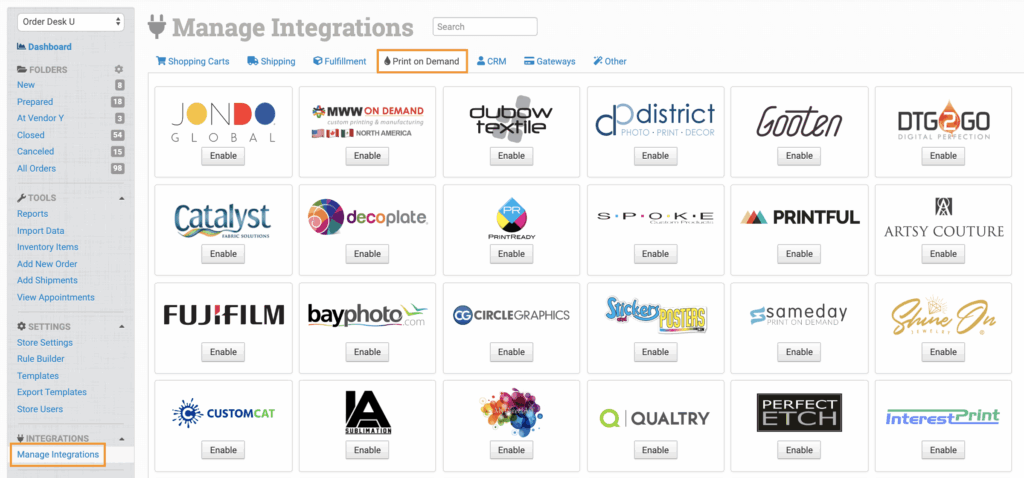
To connect to Crystal D, click on the Manage Integrations link under the Integrations menu in the left sidebar, and under the Print on Demand tab find and enable Crystal D.
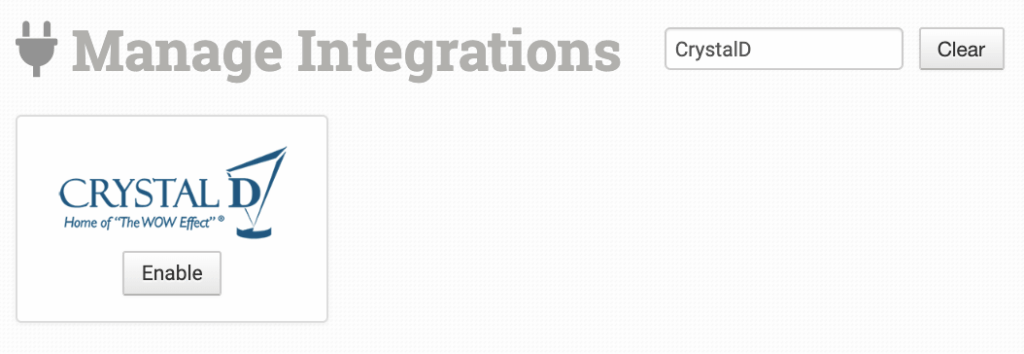
Alternatively, search for Crystal D from the available integration search.
Enter your API Keyand click to connect.
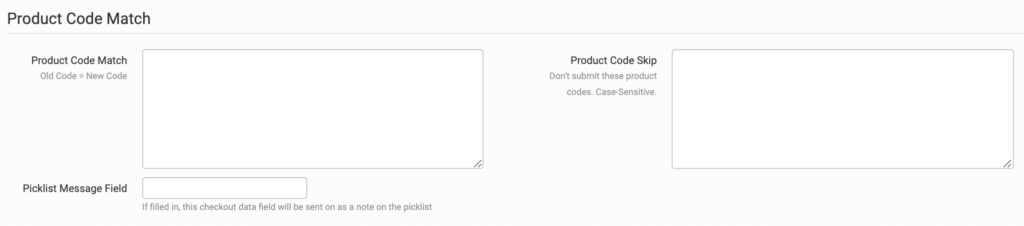
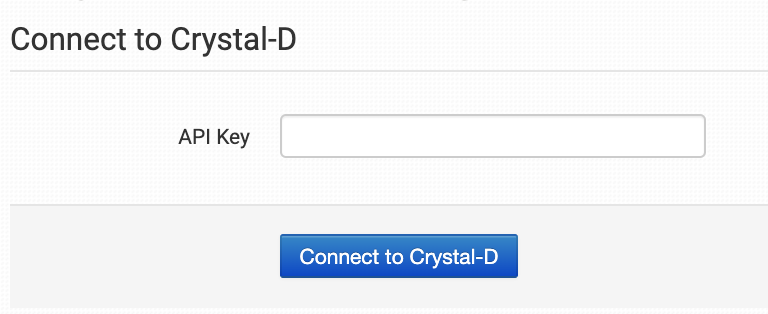
Please note that Order Desk isn’t able to help find or reset your credentials, as they can only be provided by Crystal D.
Integration Settings
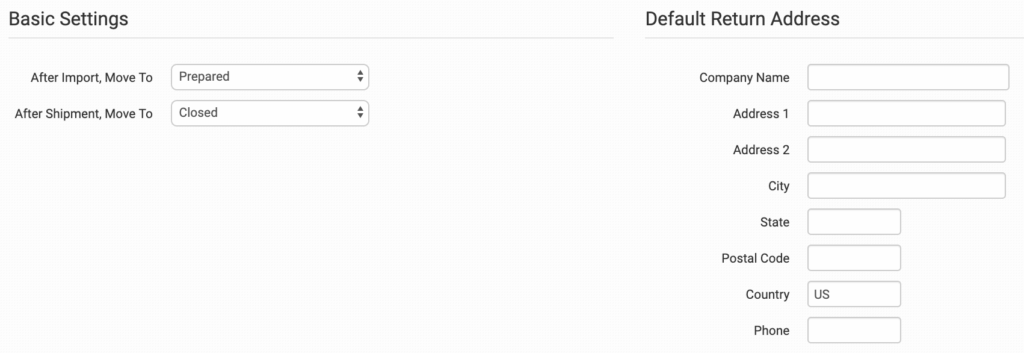
After Import, Move To
Select the folder you want orders to be moved into after they are successfully sent to Crystal D.
You can use one of the default folders already in your store or create your own. Read the Working with Folders guide for more information.
After Shipment, Move To
Select the folder you want orders to be moved into after Crystal D sends shipment details back to Order Desk.
Default Return Address
Set the default return address that Crystal D should use on your shipments.
If you need to customize the return address for certain orders, you can save different return addresses to your Store Settings and then use a rule to set the return address to specific orders. If a return address is not added to the order, the default address set here in the Crystal D settings will be used.
For information on adding additional return addresses and applying them to specific orders with a rule, see the Store Settings guide.
Default Shipping Account
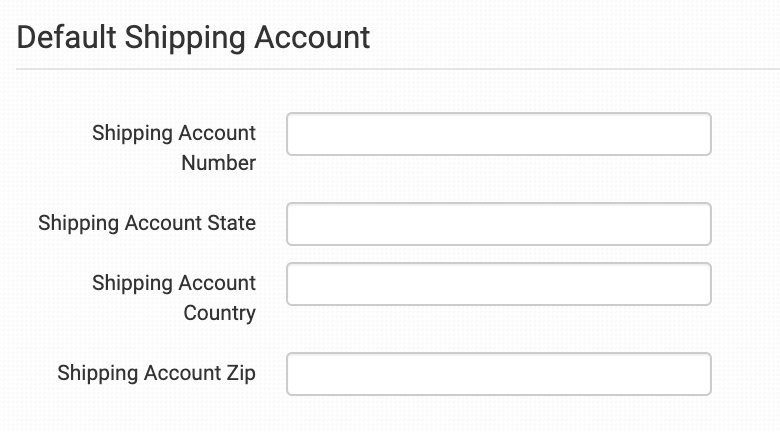
Add the shipping account details to be used for your order shipments.
If you need to specify these details on a per order basis, you can apply the shipping details to checkout data following these instructions.
Product Settings
For more information on what these product settings within the Crystal D integration are for, please refer to the Print on Demand Product Settings guide.
Sending Orders to Crystal D
Getting your orders ready to send to Crystal D will take some set up time. For a detailed walkthrough of how to use Order Desk with your Print on Demand orders, please read through our Print on Demand Fulfillment guide.
Preparing Your Orders
The following details can be submitted for an order as either checkout data or order metadata.
| Field Name | Field Description |
| ShippingAccount | Shipping account number if different from the default setting. |
| ShippingAccountState | Shipping account state if different from the default setting. |
| ShippingAccountCountry | Shipping account country if different from the default setting. |
| ShippingAccountZip | Shipping account zip if different from the default setting. |
If you are unfamiliar with checkout data, see the How to Work with Checkout Data guide.
Preparing Your Items
The following fields can be set as variations or item metadata for each item in an order.
| Field Name | Field Description |
| print_sku | Crystal D’s product code for the item. |