
Order Desk can connect to your Create account and automatically download orders.
Setup
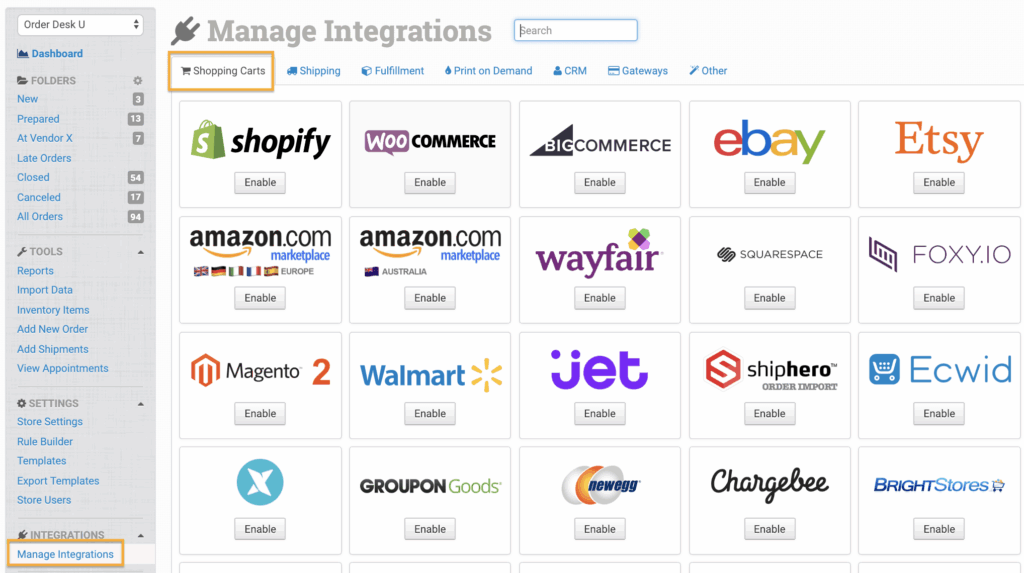
In Order Desk, click on Manage Integrations under the Integrations menu in the left sidebar. Under the Shopping Carts tab, find and enable Create.
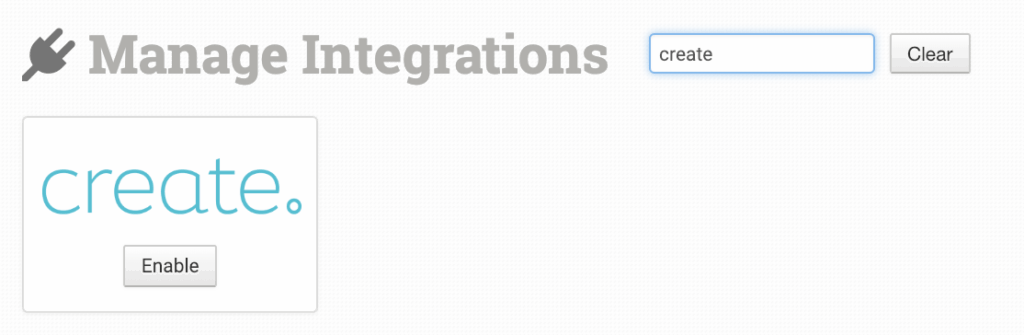
Alternatively, search for Create from the available integrations search.
Once enabled, add your Create API Token and click to connect.

To find your Create credentials, please contact your rep from Create. Order Desk support is not able to help with finding or resetting your Create credentials, as they are created and provided by Create.
Integration Settings
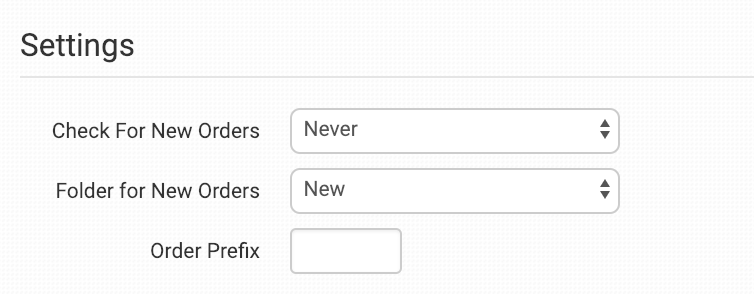
Once connected, you can set your integration preferences.
Check for New Orders
Select how often you want Order Desk to look for and download new orders from Create.
Folder for New Orders
Select the folder where newly imported orders from Create should be placed.
For more information, see the Working with Folders guide.
Order Prefix
If you need to, you can add a prefix of your choice that will be added to all orders downloaded from Create.
Manual Imports
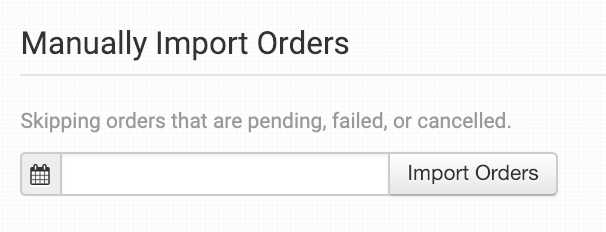
If you need to manually download orders, set the date from which you want Order Desk to start looking here and click to import.
Orders that are Pending, Failed or Cancelled will be skipped.