
Setup
To connect to Capacity, click on the Manage Integrations link in the left sidebar and under the Fulfillment tab find and enable the Capacity integration.

Alternatively, search for Capacity from the available integration search.
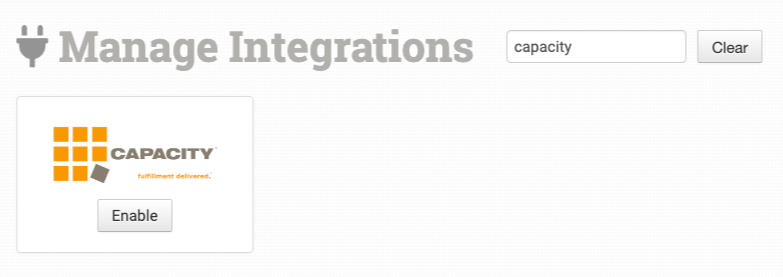
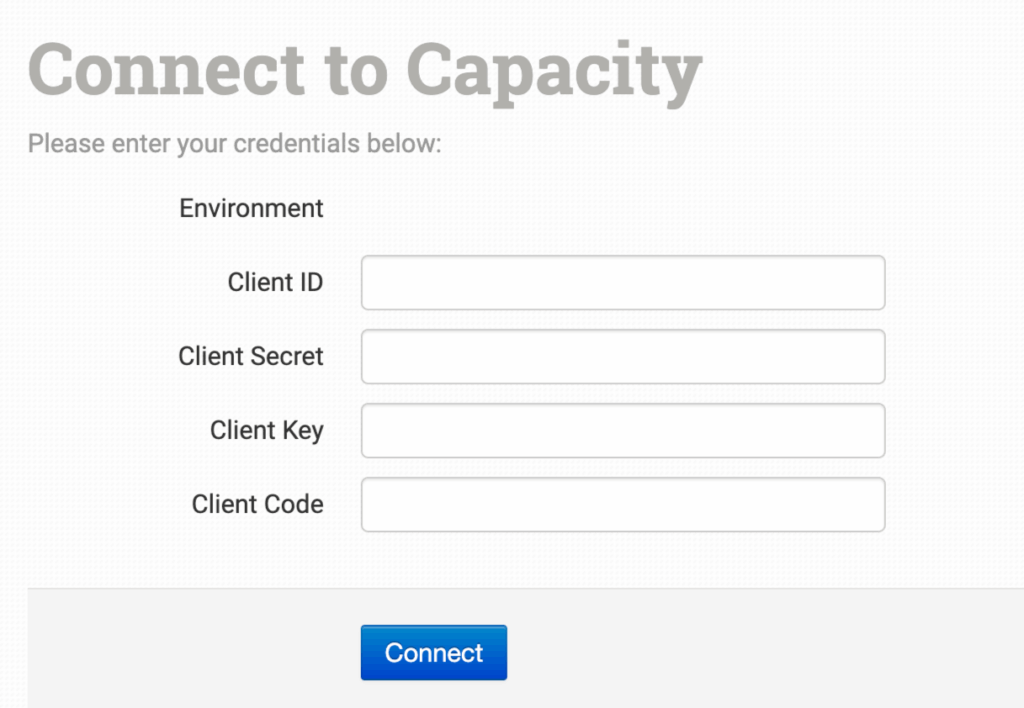
Once enabled, enter your Capacity credentials and click to connect.
Integration Settings
After you have connected the integration, you can apply any necessary details or preferences to the settings.
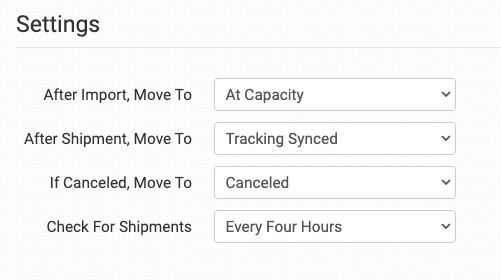
After Import, Move To
Select the folder you want orders to be moved into after they are successfully sent to Capacity.
You can use one of the default folders already in your store or create your own. Read the Working with Folders guide for more information.
After Shipment, Move To
Select the folder you want orders to be moved into as Capacity sends shipment details back to Order Desk.
If Canceled, Move To
Select the folder you want orders to be moved into if they are canceled at Capacity.
Check for Shipments
Choose the time interval for how often you want Order Desk to check for new shipments in Capacity.
Product Settings

For more information on what these product settings in the Capacity integration are for and how to use them, read the Fulfillment Integration Product Settings guide.
Order Level Details
The following fields can be added as checkout data or order metadata to be passed through to Capacity on an order by order basis:
| Field Name | Field Description |
| capacity_delivery_date | Use to set the latest delivery date for your order. |
| delivery_notes | Use to pass shipping comments. |
If you are unfamiliar with checkout data, see the How to Work with Checkout Data guide.
Item Level Details
The following can be set as item metadata or variations on the items in your orders.
| Field Name | Field Description |
| capacity_sku | Use to set the Product ID. If no value is set, the Item Code will be used as default. |
If you are unfamiliar with how to add item metadata or variations to your items in Order Desk, see the How to Work with Inventory Details guide.